Track Your PC's Route to the Internet with Tracert
Published on March 14, 2023 · Niwo
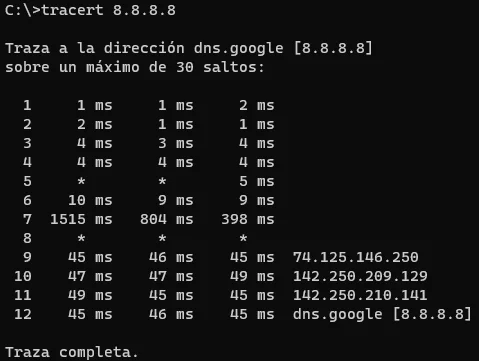
The Tracert command is a valuable tool for diagnosing network failures or understanding the route your internet connection takes. It’s especially useful when you lose connection and need to identify where the problem lies.
How to Run a Tracert?
Tracert is easy to execute from the System Console (CMD) in Windows. It displays a list of IP addresses, starting with your gateway on the network you are connected to. The gateway is the device that connects you to the internet. Then, Tracert provides all the IP addresses involved in your connection to the specified address or domain. For this example, we will use 8.8.8.8, Google’s public DNS.
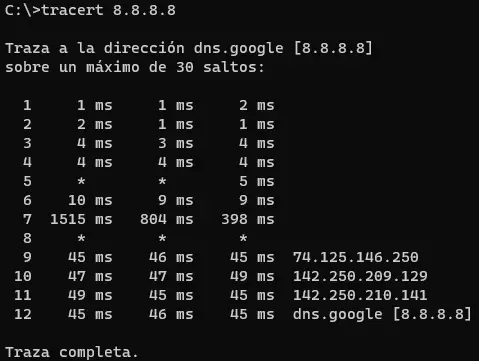
Upon completing the trace, you’ll have a complete list of the IP addresses that make up the route. It is important to note that some routers do not respond to ICMP requests, so not all public IPs on the internet may be shown.
How to Detect Network Failures in Your Connection?
This is a more advanced use of the command, but relatively simple to interpret. If you try to reach a specific IP (for example, 192.168.0.100 or 8.8.8.8) and run Tracert from the CMD console, you will observe the path your connection takes. If at some point you consistently see the error message shown in the following image:

This indicates that there is no response after the last IP device displayed. It’s likely that this device does not have an internet connection. If this happens after a hop and you are at home, it’s most likely that your router doesn’t have an internet connection. If even the first device doesn’t respond, it’s possible that your own computer isn’t connected to the network.
Although this analysis may not always be applicable in such a “mechanical” way, it is a good approximation for identifying common failures in home networks.