How to Get Your PC's IP Address with CMD
Published on March 13, 2023 · Niwo
Finding your PC’s IP address is a simple task, and in this article we will show you how to do it using the ipconfig command. In addition, we will explore other useful functionalities offered by this tool, very valuable for locating your equipment on the network.
How to Get My PC’s IP Address?
The fastest way to get the IP address is through the terminal: bash ipconfig
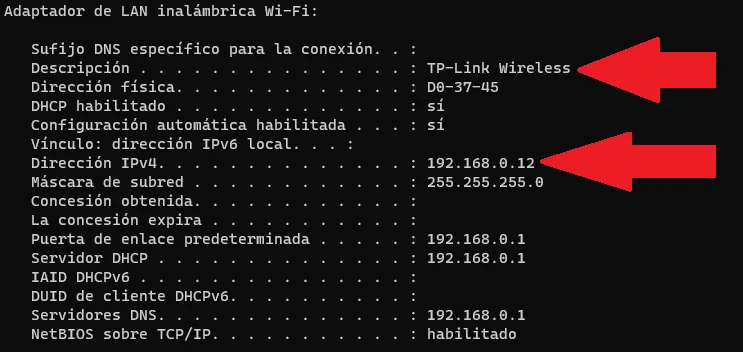
By running this command, all configured network adapters in your system will be displayed. Look for the adapter you are interested in (for example, Wi-Fi or Ethernet) and locate the "IPv4 Address" field. This value is the IP address of your PC on the current network.

The information displayed may seem confusing at first, but you only need to identify the "IPv4 Address" field to find the IP address you are looking for.
## How to Identify the Connected Network Card?
If you have multiple network cards, it may be difficult to determine which one is active. To do this, you can use the `/all` option of the `ipconfig` command:
```bash
ipconfig /allThis command provides a detailed output with information about each network adapter:
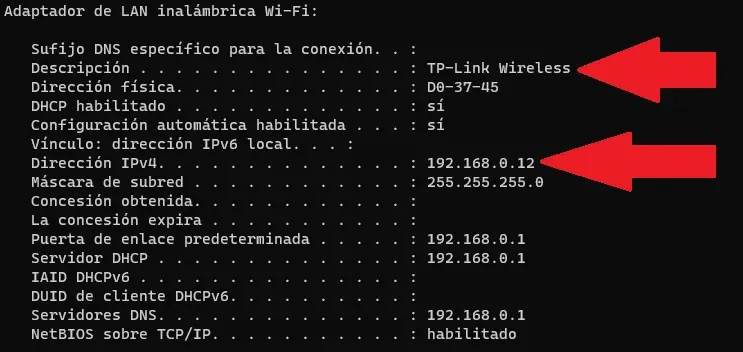
Pay attention to the following fields:
- Description: Indicates the brand and model of your network card. If you see “Wireless” or “Wifi”, it is a wireless connection. If it says “Ethernet”, it’s a wired connection. It will also indicate if it’s a virtual adapter created by programs like VPNs, as it will include terms such as “VPN” or “Virtual” in the description.
- IPv4 Address: The IP address of the adapter you are analyzing. If this field is empty, it means that the adapter does not have an IP address assigned (it may be disconnected).
How to Renew My IP Address?
Sometimes, it’s necessary to renew your PC’s IP address. This can be done using ipconfig, but keep in mind that this will cause a brief interruption of the network connection while the process is carried out. The DHCP (Dynamic Host Configuration Protocol) server assigns IP addresses and handles this task.
The commands to follow are:
- Release the current IP address:
ipconfig /releaseThis command “deletes” the current network configuration from your PC, including the IP address.
- Renew the IP address:
ipconfig /renewThis command requests that the DHCP server assign a new IP address to your PC.
Need to calculate subnets, IP ranges and masks? Try our Subnet Calculator.