Learn How to Use the Ping Command in Windows with These Little Tricks
Published on March 10, 2023 · Niwo
The PING command is a very useful tool for Windows users. It’s commonly used to verify internet connectivity by sending packets to an online service and waiting for a response. However, the ping command offers many additional uses that can be very helpful, such as determining if you have access to a network even with multiple adapters connected. In this article, we’ll teach you some tricks to get the most out of it.
Basic Usage of the Windows Ping Command
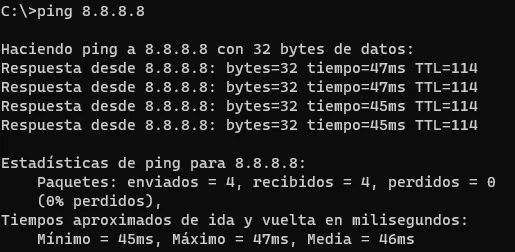
The simplest use of the ping command is to specify an IP address to which ICMP packets will be sent and observe whether a response is received. As shown in the image below:
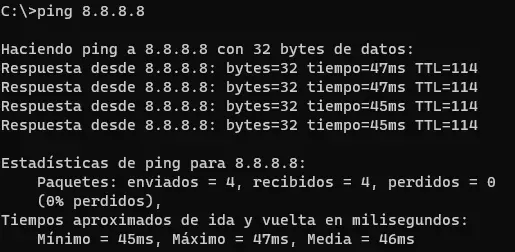
An easy test is to ping 8.8.8.8, which corresponds to Google’s public DNS. This always responds to pings if you have a stable internet connection at the time of the test.
Pinging Infinitely
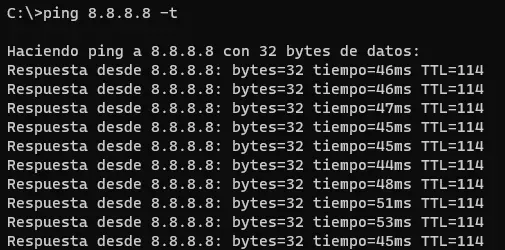
It’s important to know that pings are usually short and limited to a few packets. If you need to validate connectivity for a longer period, you can use the -t option. This flag makes the ping command run continuously until you interrupt it by closing the terminal or pressing Ctrl + C.
Sending a Specific Number of Packets When Using Ping
If you want to send a specific number of packets with the ping command, use the -n option. This allows you to specify how many packets will be sent (from 1 to a high number). However, keep in mind that statistics for the ping will only be displayed once all packets have been sent.
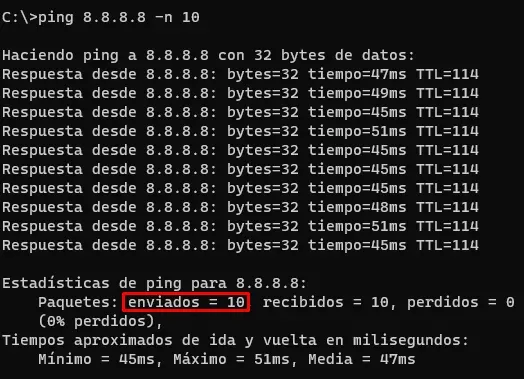
As you can see in the image, 10 packets were sent, as indicated by the -n option. It’s a simple but useful tool for network-level testing.
Ping Command from a Specific IP Address on My Computer
To ping from a specific IP address of your computer and prevent Windows from automatically choosing the output interface, use the -S option. Remember: this option is case-sensitive. Therefore, it’s crucial to write it correctly in uppercase. With this option, you tell Windows which IP address your computer will use to send ICMP packets.
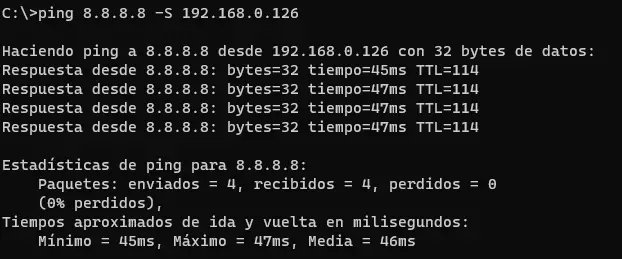
As shown in the image, the IP you specify after the -S option is the one your computer will use to send the ping. The command itself will indicate the address used. However, make sure this IP is assigned to one of your network interfaces; otherwise, the command will fail.
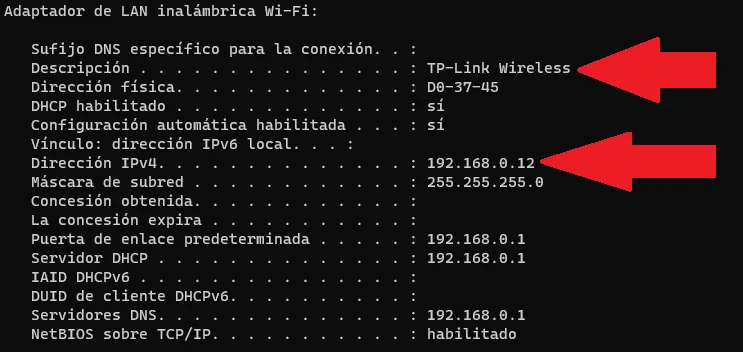
If you don’t know your local IP to perform this test, you can use the ipconfig command or consult our article on how to use it:
¿Cómo consigo la IP de mi PC por CMD?, acá te explicamos como.
Need to generate custom network scanning commands? Try our Nmap Command Generator.