Transfer Files from Your Android Phone to Your PC with the Xiaomi File Manager App - It's Very Easy!
Published on December 12, 2020 · Niwo

Transferring files from your phone to your computer can be a cumbersome process. Traditionally, we require connecting the device directly via USB cable. However, there’s a much more convenient alternative: using our Wifi network and the integrated FTP system in the Xiaomi File Manager app. It’s as simple as using this tool!
What application do you need to transfer files from your phone to your PC?
The File Manager app, also known as File Explorer, usually comes preinstalled on most Xiaomi phones. If not, you can download it directly from the Google Play Store: File Manager by Xiaomi: Explorer your files easily.
How to use Xiaomi File Manager to transfer files?
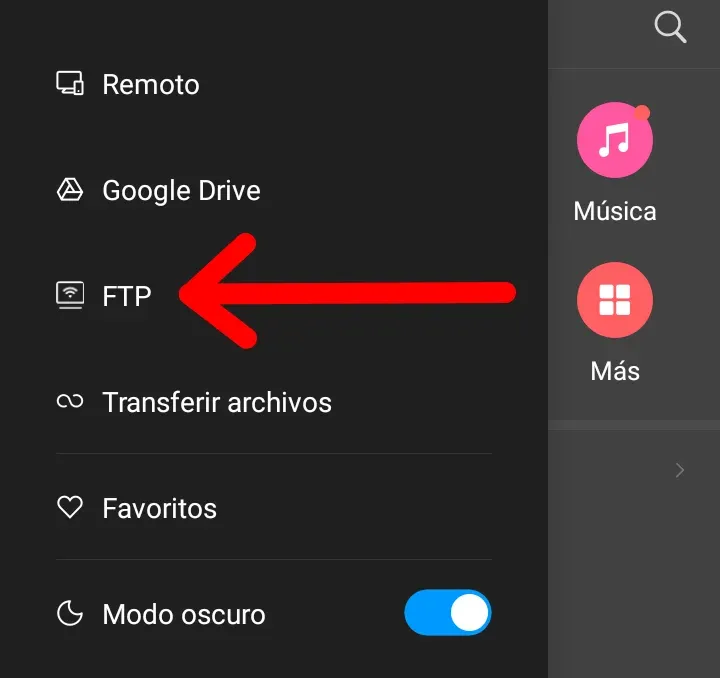
Once you are connected to the same Wifi network as your computer, you can access your Android device from your PC using this application. Simply activate the FTP option within File Manager.
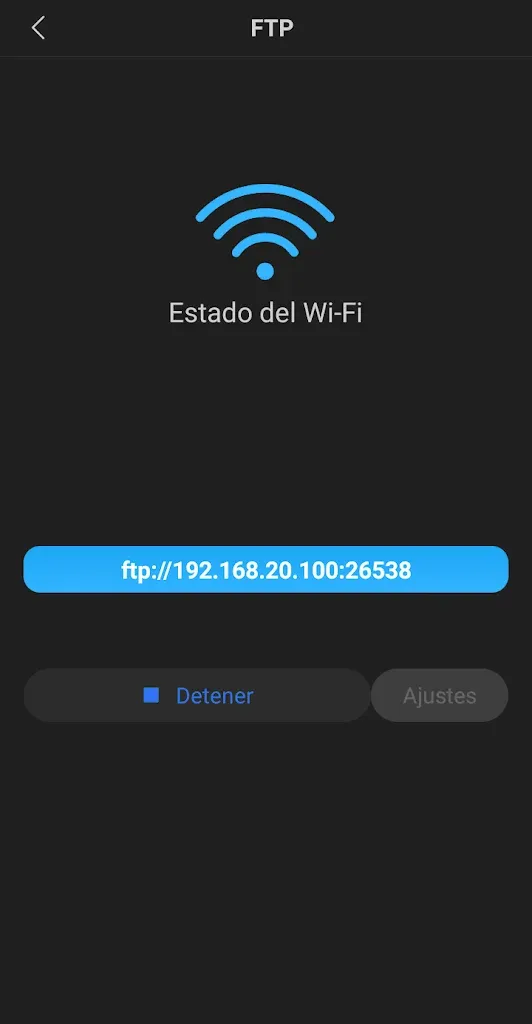
This will generate an FTP server with a random port (in the example, “:26538”). To access the files on your phone, open any web browser (Google Chrome, Firefox, etc.) or your computer’s file explorer.
In the address bar of the browser or in the location where you enter the FTP address in the explorer, enter the following address:
ftp://192.168.20.100:26538
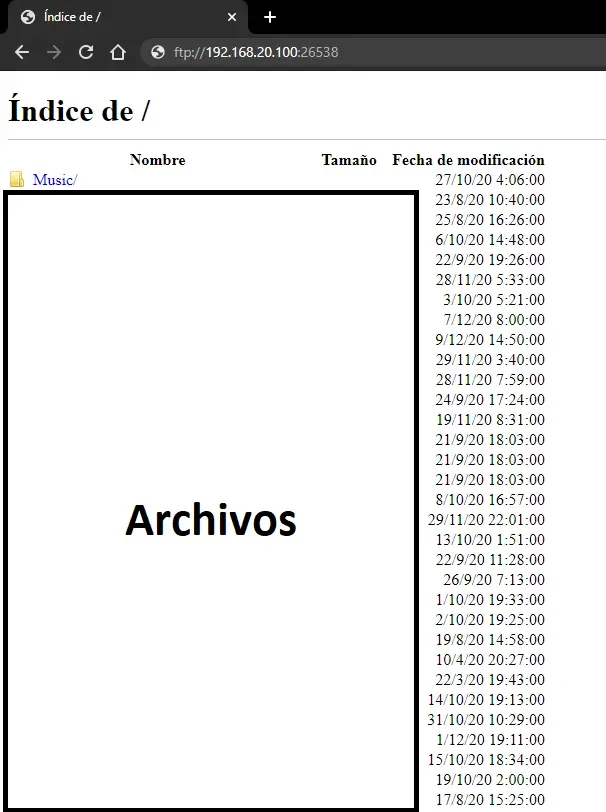
Next, I’ll show you two examples of what this would look like, first in a web browser and then in Windows Explorer.
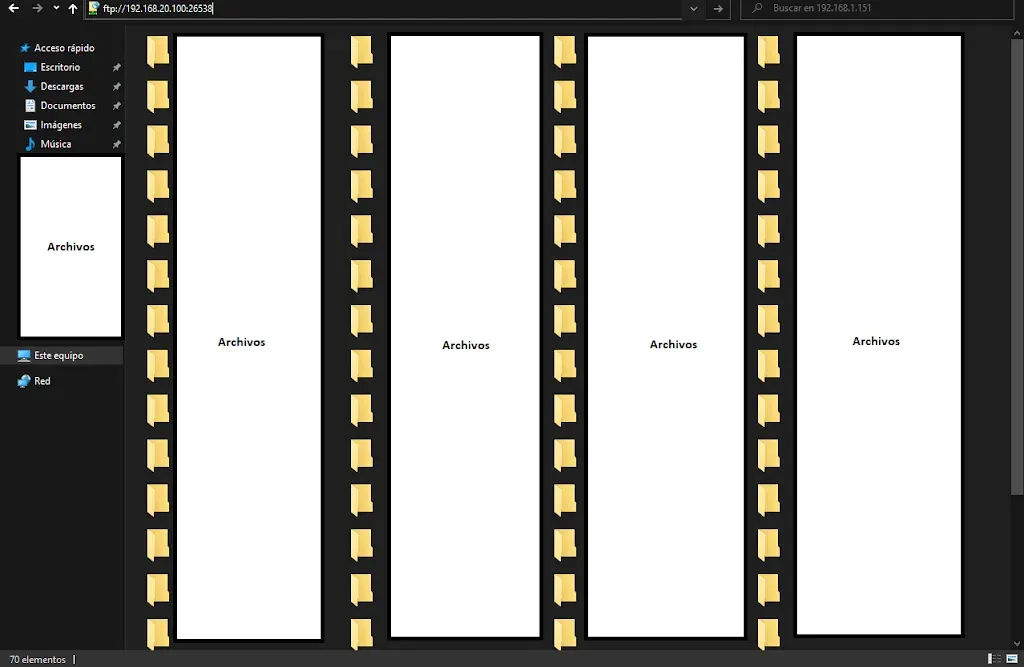
What can you do with the FTP offered by the Xiaomi File Manager app?
In addition to transferring files as you would on any other FTP server, this tool allows you to perform various actions: create and delete folders, rename files and folders, etc. Your phone will be completely accessible to make changes, as if it were connected directly to your computer via a cable!