Configure any ADSL modem for CANTV - Solution for ABA Venezuela
Published on December 3, 2020 · Updated onJanuary 15, 2026 · Niwo

Learn how to configure your ADSL modem for CANTV. If you recently acquired a modem that works with the ABA CANTV service in Venezuela, but is not directly provided by CANTV, meaning an ADSL modem that does not come preconfigured for ABA CANTV, we’ll explain which parameters are most important to modify on this device. With the intention of making it work correctly with the CANTV internet service.
It is important to highlight that this guide also works if you lost the modem configuration for any reason, whether due to memory damage or any other cause. However, I clarify that it is only necessary to configure the modem if it is not homologated by Cantv. This means that it does not come preconfigured to function exclusively with this service provider.
How do I identify if my modem is preconfigured for ABA CANTV?

StarBridge FCC DSL 305 EU Modem
The most important thing is that it varies depending on the model of the modem. Some simply have the Cantv logo on one side, such as the Starbridge 305EU modems in the image above. But there are other models from the same manufacturer, Starbridge, that do not have this logo but also come configured to work with Cantv natively and usually do not require changes in the configuration, such as the Starbridge Lynx 220. That is, even if it doesn’t say Cantv on one side, it’s configured for it.
Some manufacturers that have preconfigured CANTV modems that DO NOT require additional configuration:
- StarBridge
- ZTE (Old - With CANTV Logo)
- Huawei (Old - With CANTV Logo)
Manufacturers that DO require configuration before installing the modem on the ABA Cantv service:
- D-Link
- TP-Link
- NetGear
- Mercusys
- Arris
- ZTE (Not Homologated by CANTV - Without CANTV Logo)
How do I enter my CANTV modem’s administrative menu to configure it?
How is an ADSL modem configured for CANTV? It varies slightly depending on the brand, but it’s usually quite simple since commercial modems include a small label on their back with the connection parameters, as well as the most important: the IP. This is usually 192.168.1.1, but it varies depending on the modem and manufacturer.
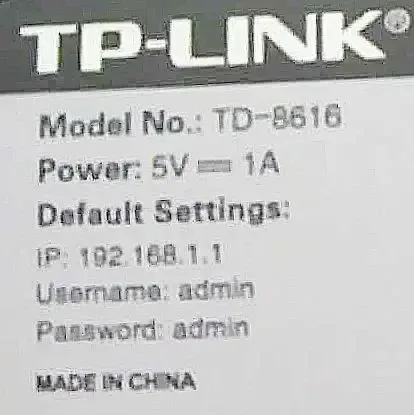
TP-Link TD-8616 Label
In the case of the TP-Link TD-8616, as we see on the back label, it includes everything we need. So it’s just a matter of connecting the modem to our PC and opening a browser to place the IP that the label tells us: http://192.168.1.1. This will open the administrative panel requesting the passwords. In this case with the TP-Link, they are user “admin” and password “admin”.
This step works even if you don’t have an internet connection, since it’s to enter the modem. Therefore, don’t worry about whether or not you have an internet connection at this point when opening the browser. If an error appears on the screen or we cannot connect, the most likely thing is that the IP we placed is not the correct one currently. Therefore, we will need to locate the IP before proceeding.
Another method to locate it is to verify if we have an IP from the modem, since many commercial models include DHCP service. Therefore, it’s quite simple: we just need to open “System Symbols” or “cmd” in Windows and type the following command: bash ipconfig
This will give us the IP of our equipment and the IP of our modem if we are only connected to it and has DHCP enabled. If not, it will only give us blank data. I leave you an example so you can guide yourself:

Example of IP on Modem with Active DHCP
These parameters are **exclusively if we are connected directly to the modem via cable**. We cannot use a router that emits Wifi in between the connection, or we will not be able to access the modem and **we will only obtain this data if the modem has DHCP active.**
## What parameters should we configure on a CANTV modem?
Now that **we have already connected to the modem**, let's go with the most important parameters to connect to Cantv ABA. There are quite a few that we must keep in mind and are quite scattered among the menus of some models, so be attentive to those that are essential and others that only appear optional in some models.
### WAN Parameters to configure your ADSL modem for CANTV
* **PVC Parameters**
* VPI: 0
* VCI: 33
* **Encapsulation (Encapsulation in English)**
* LLC (In some routers it is marked as 1483 Bridged IP LLC)
**Important:** The important thing about this parameter is that it marks LLC.
* **WAN IP (ISP IP)**
* Dynamic WAN IP (Dynamic IP Address or Obtain IP Address Automatically)
**Note:** This IP must always be dynamic, since it is the one assigned to us by CANTV to have internet connection.
* **NAT**
* Enabled (Enable in English)
**Note:** It is extremely important to enable this parameter; it may be found in a quite different amount of equipment in different menus, but it will always be called NAT.
* **Optional for some routers:**
* **Netgear DGN 1000:** This model and some other NetGear have a field in the "Basic Setting" tab that says the following: “Does your internet connection require a login?". **This field must be marked as NO**, or we will not have an internet connection.
Once configured all the parameters of your modem, it will give you output to the internet as long as only the modem is failing you. Therefore, it’s good to know these parameters and have them on hand when we want to reconfigure them or when the memory fails for any reason and deletes everything.
## Do you have a different model of modem than the ones listed and were able to connect it to Cantv?
If you have another modem model that we haven't listed in this article and know any additional configuration parameters beyond those we’ve already mentioned, leave them in the comments so we can add them to the list of brands that can be used with Cantv.