How to Run a CMD Console on a Remote PC with Psexec | Detailed Explanation
Published on April 12, 2023 · Niwo

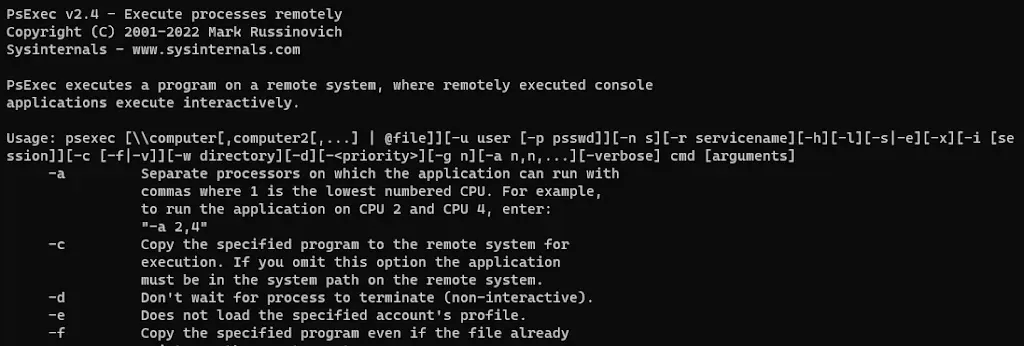
First of all, I want to clarify that Psexec is not intended for malicious uses. It’s an administrative utility developed by Microsoft that allows system administrators or users with remote access and valid credentials to obtain said access and execute a variety of commands. While in this article we will focus on executing CMD, Psexec offers many more functionalities.
How do I install Psexec on my Windows computer?
This tool is part of the PSTools, a suite of tools developed by Microsoft. You can download the complete package from the official page:
Download Psexec - Pack Pstools
Once downloaded, unzip the file to access the executables, including psexec.exe. Place this file in a folder on your computer, for example:
“C:\Program Files\pstools”
In this path, organize all the content of PSTools. The structure should be similar to the following image:

With Psexec in this folder, you can already execute it. However, to avoid having to navigate to the location every time you need it, we will modify the system environment variables.
### (Optional) Modify Environment Variables
The easiest way is to search for "Environment Variables" in the Windows search bar and select "Edit the system environment variables". In the window that opens, click on the "Variables..." button.

Find the "Path" variable (or "RUTA" in some versions of Windows) and select it. Click "Edit". Add a new line with the path to the folder you created for PSTools, for example: `"C:\\Program Files\\pstools"`. Make sure to save the changes in the three open windows.


Close all open CMD windows and open a new one. Now, when you type `psexec` in the command line, the command will execute without needing to specify the full path. If you receive the message **"psexec is not recognized as an internal or external command, operable program or batch file"**, verify that the path to the PSTools folder is correctly added to the environment variables.
## How can I access a remote computer with Psexec?
To access the CMD of a remote computer, you need an account with administrative permissions on that computer or a domain account with appropriate privileges. The basic command to execute the CMD is:
psexec -i \IP_DEL_EQUIPO -u USUARIO_DEL_EQUIPO cmd
Let's break down each part of the command:
* `-i`: Indicates that the console should be interactive, which is necessary to run a CMD.
* `\\IP_DEL_EQUIPO`: Replace `IP_DEL_EQUIPO` with the IP address or hostname of the remote computer (for example, `\\192.168.0.10`).
* `-u USUARIO_DEL_EQUIPO`: Replace `USUARIO_DEL_EQUIPO` with the username that has access to the remote computer. It's important to have the password for this user or use a domain account with administrative permissions.
* `cmd`: Specifies that the command interpreter (CMD) should be executed on the remote computer.
When attempting to access, you will be prompted for the user’s password. Keep in mind that you won't see the characters while typing the password for security reasons. Simply type the password and press Enter. If everything is correct, you will gain access to the remote console.

## Psexec examples explained in detail
In addition to executing CMD, Psexec allows you to perform other tasks such as copying an executable to the remote computer and running it, or executing specific programs on behalf of the remote user.
* **Execute a .exe by copying it to the remote computer and then running it:**
psexec -i \IP_DEL_EQUIPO -u USUARIO_DEL_EQUIPO -c ejecutable.exe
The `-c` option allows you to copy the `ejecutable.exe` file (located in the same folder from which the command is executed) to the remote computer and run it. This is useful for software installations such as antivirus or inventory systems that require an interactive console interface.

*   **Execute a specific .exe that already exists on the remote computer, specifying its full path:**
psexec -i \IP_DEL_EQUIPO -u USUARIO_DEL_EQUIPO C:\Windows\System32\CMD.exe
The only difference with the previous command is that the full path to the executable is specified. This works for any program, as long as you have the necessary permissions.