Connect to a Remote PC with RDP: Windows Remote Desktop
Published on April 13, 2023 · Niwo
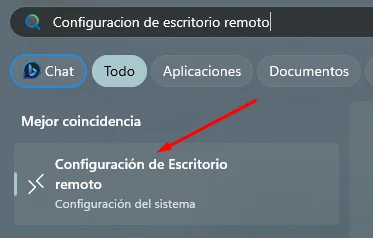
Connecting to another PC using Windows Remote Desktop is not as complicated as some might think. Windows includes a built-in tool for this, which uses a specific protocol called RDP (Remote Desktop Protocol).
The application is called “Remote Desktop Connection” and is very useful in business environments where servers can be accessed through this method. But we can also use it to connect to our own home computers without complex configurations.
It’s important to note that, before you can do so, you must perform some preliminary settings on the PC you want to access, as by default this service is not active for security reasons. However, the process is not complicated; here’s everything you need to know.
How do I enable Remote Desktop on my PC?
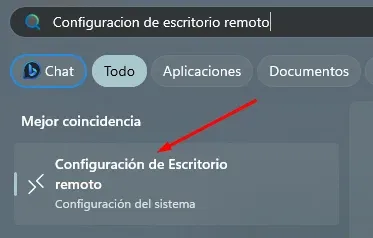
This configuration is easily accessible by searching for “Remote Desktop Settings” in the Windows start bar. As shown in the image, this will take you directly to the corresponding section:
There you can enable it and it is essential to check the box “Require network level authentication for connections”. This will prevent unauthorized access, as this protocol is well known and therefore susceptible to attacks.
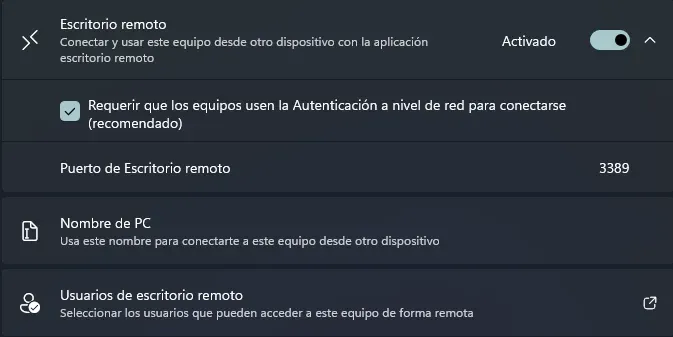
In Windows 11 (at least), you can add additional users who will be allowed access from this menu, in addition to ourselves, the main users of the computer. Otherwise, we would only have access ourselves. If your network uses a domain, it is possible that this section is not editable and all users with RDP permissions on their domain account can access.
How do I connect via RDP to a PC?
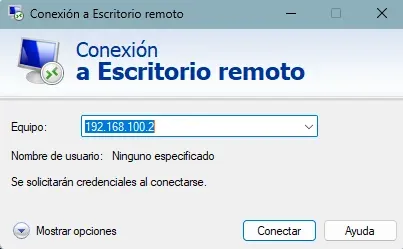
Search for “Remote Desktop” in the start bar and the single Windows application for this function will open. Upon opening it, you’ll see a simple menu that asks you for the IP address you want to connect to. Here we enter the IP of the remote computer or its hostname (if it has one). Next, you will be prompted for access credentials. Enter your username and password, and that’s it! You will remotely access the other computer.
Important: Keep in mind that when accessing via Remote Desktop, the computer you connect to will be automatically locked. Therefore, be careful with this, especially if you are accessing a computer belonging to another user, as it will disconnect them from their current session.