Configure APN for Movistar Venezuela: Step-by-Step Guide
Published on December 6, 2020 · Updated onJanuary 15, 2026 · Niwo
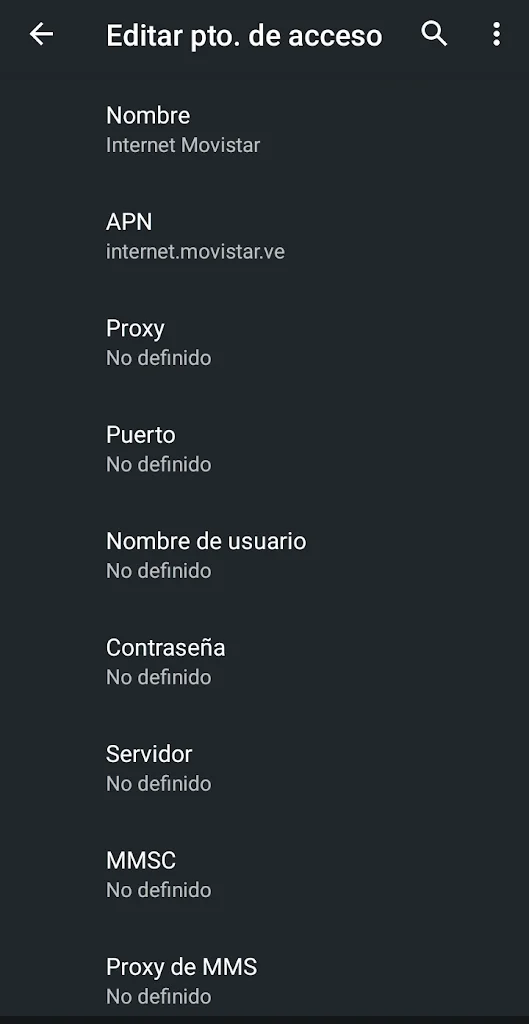
Are you having trouble browsing with your Movistar data plan? Most likely, you don’t have the APN settings configured correctly on your phone. APNs are essential for accessing the internet as they allow the connection between your device and the Movistar network. In this guide, we will explain how to configure them easily for Movistar Venezuela.
APN Data for Movistar Venezuela
Configuring the APNs in Movistar is simple. You need to enter the following parameters in the corresponding section of your phone. Normally, these settings are not preconfigured on new phones. Fields without a value should be left blank to avoid problems.
APN Parameters for Movistar 3G and 4G
- Name: Movistar Internet
- APN: internet.movistar.ve
- Proxy: (Leave Blank)
- Port: (Leave Blank)
- Username: (Leave Blank)
- Password: (Leave Blank)
- Server: (Leave Blank)
- MMSC: (Leave Blank)
- MMS Proxy: (Leave Blank)
- MMS Port: (Leave Blank)
- MCC: 734
- MNC: 04
- Authentication Type: (Leave Blank)
- APN Type: default,supl
- APN Protocol: IPv4
- APN Roaming Protocol: IPv4
If you also want to use the MMS service (sending and receiving multimedia messages), you will need to configure an additional APN. Although its use is less common today, we provide the configuration below:
APN Parameters for Movistar MMS
- Name: Movistar MMS
- APN: mms.movistar.ve
- Proxy: (Leave Blank)
- Port: (Leave Blank)
- Username: (Leave Blank)
- Password: (Leave Blank)
- Server: (Leave Blank)
- MMSC: http://mms.movistar.com.ve:8088/mms
- MMS Proxy: 200.35.64.73
- MMS Port: 9001
- MCC: 734
- MNC: 04
- Authentication Type: (Leave Blank)
- APN Type: mms
- APN Protocol: IPv4
- APN Roaming Protocol: IPv4
Example of APN Configuration on Android
Below, we show you an example of how the APN settings should look like on an Android phone. Simply replicate these values to activate data connection. Remember that blank fields must remain empty.
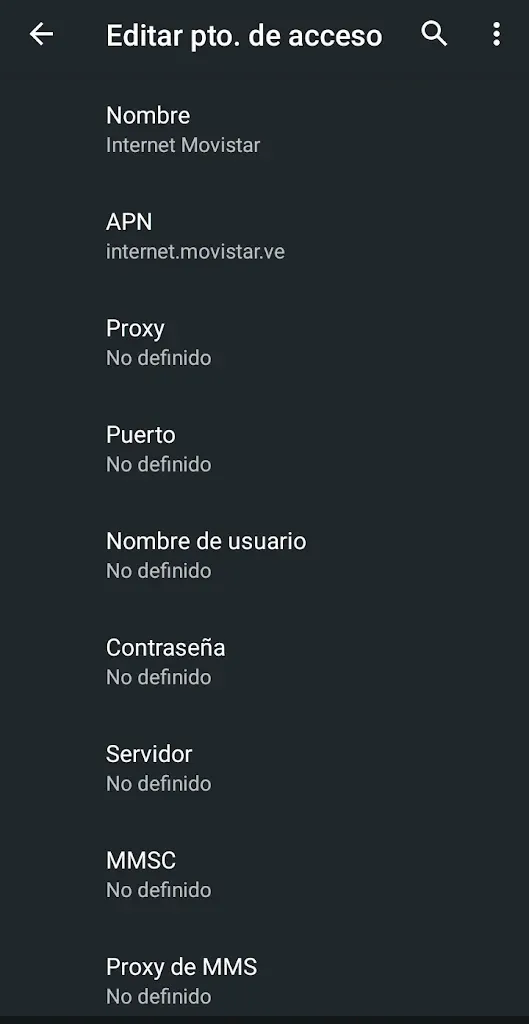
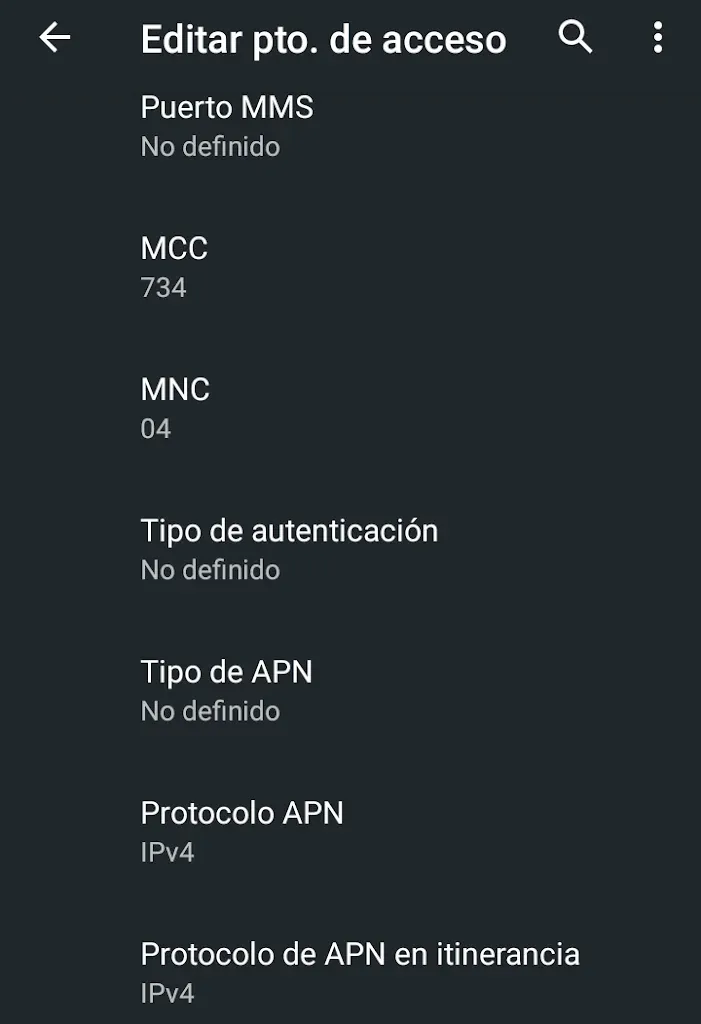
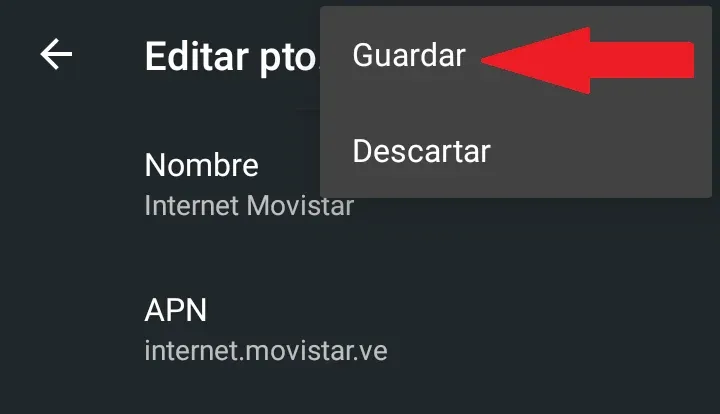
Errors are common when configuring APNs on Android. That’s why we show you where the save button is located. Important! This is the only way to save the changes and be able to use the configured APN. If you exit without saving, you will lose the entered parameters and have to reconfigure them.
Still not connecting to Movistar’s data service?
If after configuring the APNs the data service does not work, it is likely that there is another problem not related to the equipment configuration. In this case, we recommend visiting a Movistar technical support center to verify if your line actually has a data plan activated. It is also important to check the coverage in the area where you are performing the test, as without it you will not have service.