How to Configure Movilnet APN to Browse Data?
Published on December 3, 2020 · Updated onJanuary 15, 2026 · Niwo
Configuring the APN (Access Point Name) of Movilnet is crucial if your phone is not connecting to the Movilnet data network, despite having signal and an active data plan. This is usually due to incorrectly configured APN settings, preventing the device from connecting to the internet.
What are the parameters for the Movilnet APN?
Like many other carriers, Movilnet defines specific APN parameters. The most complicated part may be knowing where to enter them in your mobile phone’s configuration.
Movilnet APN Parameters for 3G and 4G:
- Name: Movilnet Internet
- APN: int.movilnet.com.ve
- Proxy: (Leave blank)
- Port: (Leave blank)
- Username: (Leave blank)
- Password: (Leave blank)
- Server: (Leave blank)
- MMSC: (Leave blank)
- MMS Proxy: (Leave blank)
- MMS Port: (Leave blank)
- MCC: 734
- MNC: 06
- Authentication Type: PAP
- APN Type: default
- APN Protocol: IPv4/IPv6
- APN Roaming Protocol: IPv4/IPv6
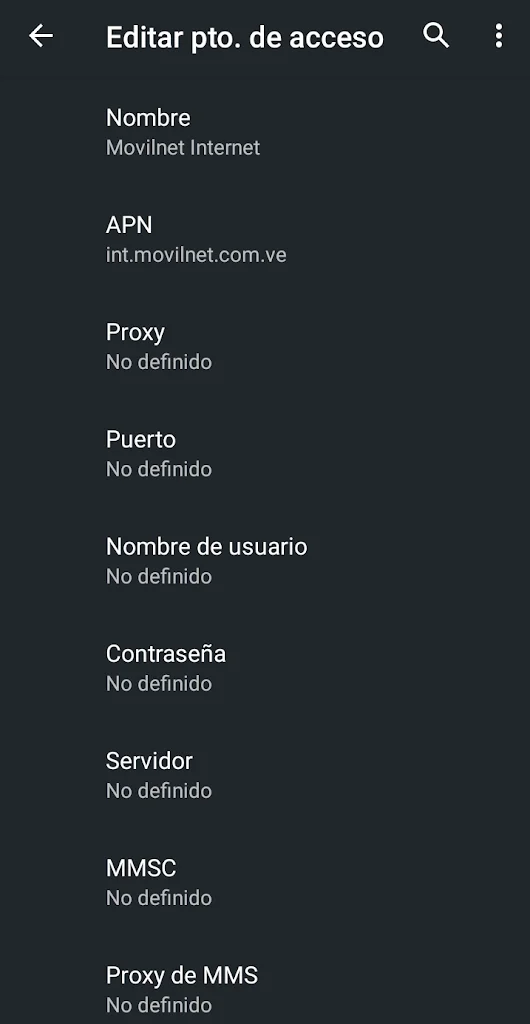
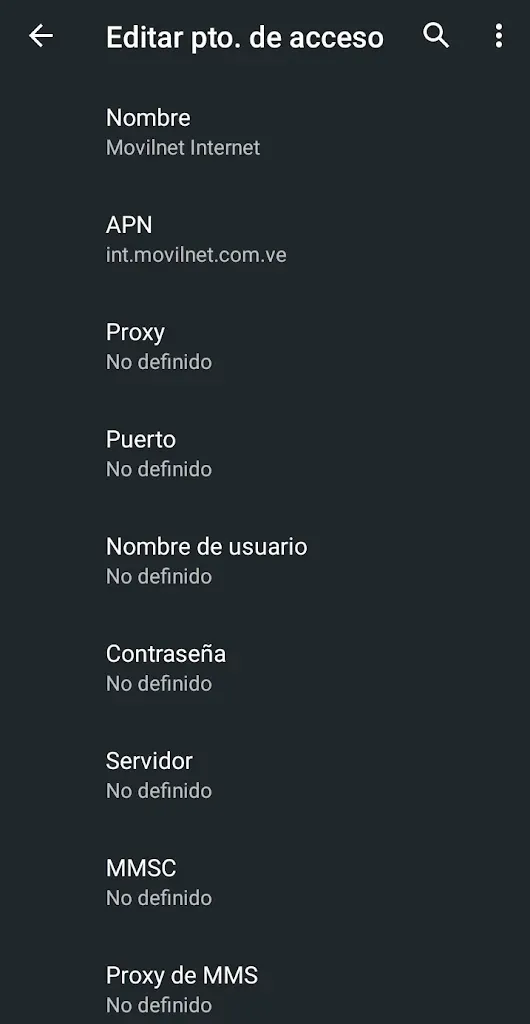
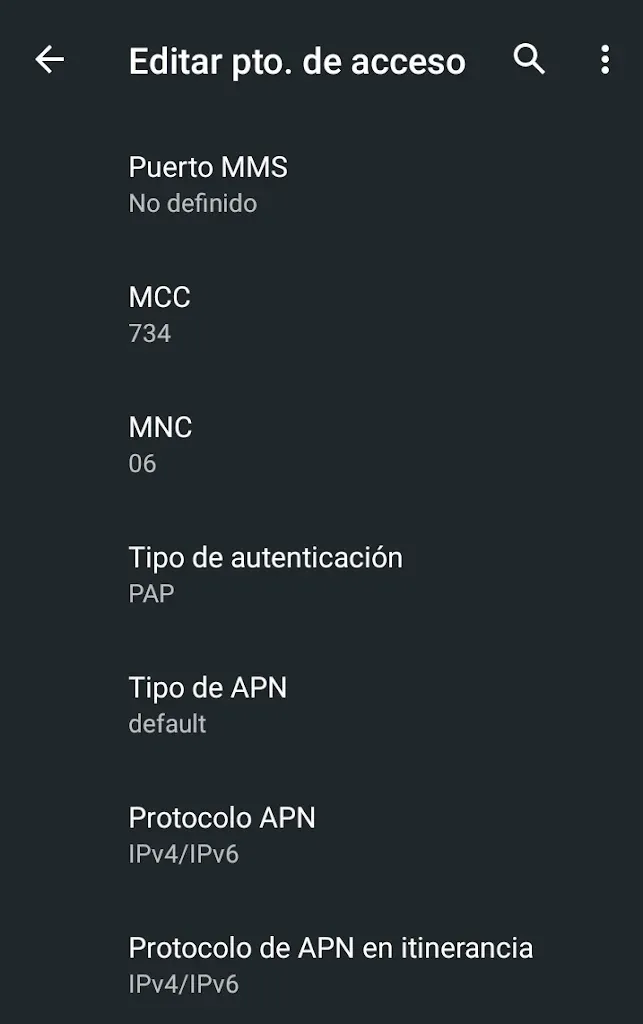
Below, I’ll show you an example of how they would look configured on an Android phone so you can verify that they match. If you have additional parameters in your phone that are different from those mentioned, do not modify them. You should only adjust the fields listed above.
Example of APN in Android
Don’t forget to save the changes
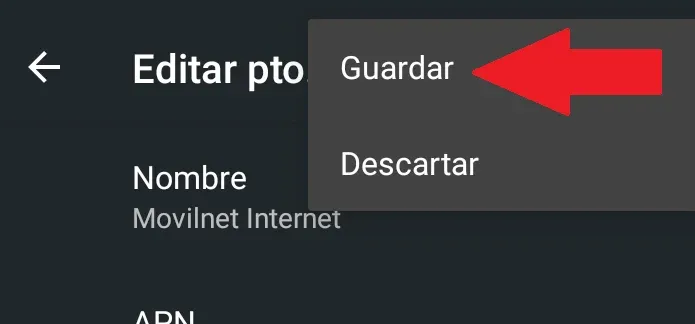
In Android, once you have configured the APN, it is important to save it. Select the three dots in the upper right corner and choose the “Save” option. Otherwise, you will have to retype the configuration.
Are Movilnet data still not working?
If after configuring the APN, the Movilnet data service continues to not work, it is possible that the signal is weak. Try changing location to verify if it’s a network coverage issue.