CRON Expression Guide: Syntax, Examples, and Best Practices
Published on June 3, 2026 · Niwo
- What is a CRON Expression?
- The Five-Field Syntax
- CRON Syntax Reference
- Minute Field (0–59)
- Hour Field (0–23)
- Day of Month Field (1–31)
- Month Field (1–12)
- Day of Week Field (0–6)
- Special Characters Explained
- * — Wildcard (Any)
- , — List (Multiple Values)
- - — Range (Inclusive)
- / — Step (Every N Units)
- L — Last (Non-Standard)
- W — Weekday (Non-Standard)
- # — Nth Weekday (Non-Standard)
- CRON Shortcuts
- Common CRON Patterns
- How to Test CRON Expressions
- Method 1: Use a CRON Calculator
- Method 2: Test with crontab.guru
- Method 3: Dry-Run with Environment Variables
- Method 4: Check System Logs
- Method 5: Run the Command Manually
- CRON Best Practices
- 1. Use Absolute Paths
- 2. Redirect Output to Avoid Mail Spam
- 3. Include Logging
- 4. Set a Proper Shebang
- 5. Lock Files to Prevent Overlap
- 6. Monitor Your CRON Jobs
- 7. Manage the PATH Variable Inside Scripts
- Frequently Asked Questions
- What does * * * * * mean?
- How to run CRON every 30 minutes?
- CRON vs systemd timers: which should I use?
- What is @reboot in CRON?
- How to debug CRON not running?
- Conclusion
- Ready to put this knowledge into practice?
What is a CRON Expression?
A CRON expression is a string of five fields that defines when a scheduled task should run on Unix-like operating systems. CRON, the time-based job scheduler in Linux and macOS, reads these expressions and executes commands at the specified moments.
CRON is the backbone of Linux task automation. System administrators use it to schedule backups, rotate logs, run maintenance scripts, send reports, and trigger countless other automated jobs. Understanding CRON expressions is essential for anyone managing Linux servers.
The Five-Field Syntax
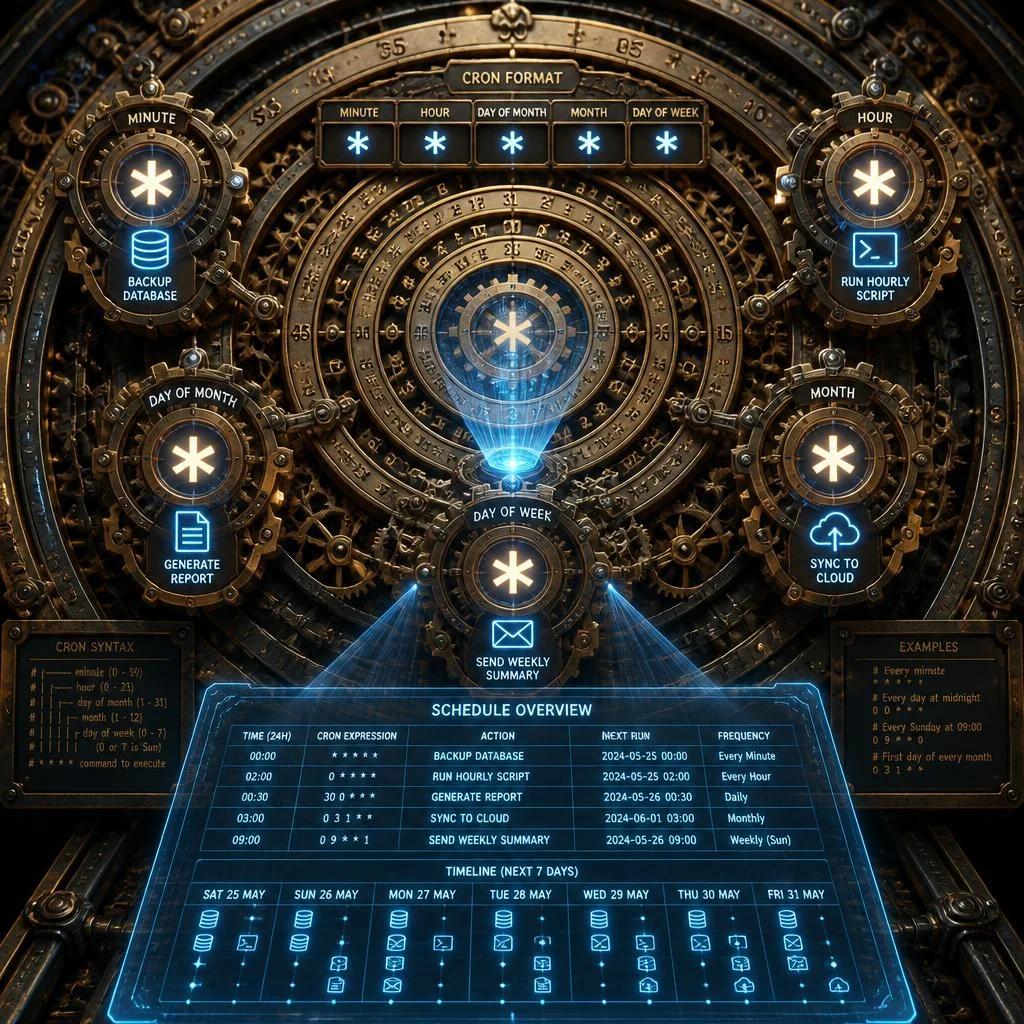
Every standard CRON expression consists of five fields separated by spaces:
graph LR
    M["minute<br/>0-59"] --- H["hour<br/>0-23"] --- D["day of month<br/>1-31"] --- MO["month<br/>1-12"] --- W["day of week<br/>0-6"]
    style M fill:#1559ed,color:#fff
    style H fill:#1559ed,color:#fff
    style D fill:#1559ed,color:#fff
    style MO fill:#1559ed,color:#fff
    style W fill:#1559ed,color:#fff
Each field can contain a specific value, a range, a list, a step value, or the wildcard character *.
| Field | Required | Allowed values | Allowed special characters |
|---|---|---|---|
| Minute | Yes | 0–59 | * , - / |
| Hour | Yes | 0–23 | * , - / |
| Day of month | Yes | 1–31 | * , - / L W |
| Month | Yes | 1–12 or JAN–DEC | * , - / |
| Day of week | Yes | 0–6 or SUN–SAT | * , - / L # |
Months and weekdays also accept three-letter English abbreviations: JAN, FEB, MAR, APR, MAY, JUN, JUL, AUG, SEP, OCT, NOV, DEC for months, and SUN, MON, TUE, WED, THU, FRI, SAT for days of the week.
💡 Use our CRON Calculator to visualize what any expression means in plain English and see the next five execution times.
CRON Syntax Reference
Understanding the valid range and behavior of each field is the foundation of writing correct CRON expressions.
Minute Field (0–59)
Controls the exact minute when the command runs. This is the most granular field in a standard 5-field CRON expression.
0— Run at the start of the hour15— Run at 15 minutes past the hour*— Run every minute (use with caution)
Hour Field (0–23)
Specifies the hour of the day in 24-hour format.
0— Midnight9— 9:00 AM22— 10:00 PM*— Run every hour
Day of Month Field (1–31)
Defines on which day(s) of the month the job runs.
1— First day of the month15— Mid-monthL— Last day of the month (non-standard, supported by some implementations like Quartz)W— Nearest weekday to the given day (non-standard)
Month Field (1–12)
Specifies which month(s) the job runs in. Accepts numeric values (1–12) or three-letter abbreviations (JAN–DEC).
1orJAN— January6orJUN— June*/3— Every three months (quarterly)
Day of Week Field (0–6)
Specifies which day(s) of the week the job runs on. Both 0 and 7 represent Sunday in most implementations.
0or7orSUN— Sunday1–5orMON–FRI— Weekdays6orSAT— SaturdayL— Last weekday of the month (non-standard)#— Nth occurrence of a weekday (e.g.,5#2= second Friday)
⚠️ CRON gotcha alert: When both day-of-month and day-of-week are specified (not
*), the job runs if either condition matches. This is a common source of scheduling bugs.
Special Characters Explained
CRON special characters give you fine-grained control over scheduling without needing complex logic.
* — Wildcard (Any)
Matches every possible value of the field. * * * * * runs every minute of every hour, every day of every month.
0 * * * * → minute 0 of every hour → runs hourly, — List (Multiple Values)
Specifies multiple individual values in a single field.
0,15,30,45 * * * *    → runs at :00, :15, :30, and :45 past every hour
0 9,18 * * MON-FRI    → runs at 9 AM and 6 PM on weekdays
- — Range (Inclusive)
Defines a contiguous range of values.
0 9-17 * * *    → runs every hour from 9 AM to 5 PM (9, 10, 11, ..., 17)
0 * 1-15 * *    → runs every hour on days 1 through 15 of the month
/ — Step (Every N Units)
Skipping values at a regular interval. The left side defines the starting point; the right side defines the step size.
*/5 * * * *      → every 5 minutes (0, 5, 10, 15, 20, 25, 30, 35, 40, 45, 50, 55)
0 */2 * * *      → every 2 hours
0 0 */3 * *      → every 3 days
0 0 * */3 *      → every 3 months (quarterly)
L — Last (Non-Standard)
Represents the last occurrence. In the day-of-month field, L means the last day of the month. In the day-of-week field, L after a value means the last occurrence of that weekday.
0 0 L * *       → midnight on the last day of every month (Quartz, cronie)
0 0 * * 5L      → midnight on the last Friday of every month
Many standard Linux cron implementations (Vixie cron, cronie) do not support L, W, or #. These are extensions found in Quartz scheduler, Spring, and some Java scheduling frameworks. Always check compatibility.
W — Weekday (Non-Standard)
Finds the nearest weekday (Monday–Friday) to the given day of the month.
0 0 15W * *    → runs on the weekday nearest to the 15th
               → if the 15th is Saturday, runs on Friday the 14th
               → if the 15th is Sunday, runs on Monday the 16th
# — Nth Weekday (Non-Standard)
Specifies the Nth occurrence of a given weekday in a month.
0 0 * * 2#1    → first Monday of every month (1 = Monday, #1 = first occurrence)
0 0 * * 5#3    → third Friday of every month
CRON Shortcuts
Several named shortcuts simplify common scheduling patterns. These are syntactic sugar — they expand to standard CRON expressions internally.
| Shortcut | Equivalent expression | Description |
|---|---|---|
@yearly or @annually | 0 0 1 1 * | Run once a year at midnight on January 1 |
@monthly | 0 0 1 * * | Run once a month at midnight on the first day |
@weekly | 0 0 * * 0 | Run once a week at midnight on Sunday |
@daily or @midnight | 0 0 * * * | Run once a day at midnight |
@hourly | 0 * * * * | Run once an hour at the start of the hour |
@reboot | — | Run once when the daemon starts (typically at system boot) |
@reboot is unique: it is not tied to a time-based schedule. Jobs with @reboot run once when cron starts, which is typically at system boot. This is useful for starting services, cleanup scripts, or initializing state.
# Example /etc/crontab using shortcuts
@reboot root /usr/local/bin/start-monitoring.sh
@daily  root /usr/local/bin/rotate-logs.sh
@weekly root /usr/local/bin/full-backup.sh
💡 Try these shortcuts in our CRON Calculator to see their expanded form and next execution times.
Common CRON Patterns
Here are fifteen practical CRON expressions covering the most common scheduling needs:
| Purpose | CRON Expression | Description |
|---|---|---|
| Every minute | * * * * * | Runs every 60 seconds |
| Every 5 minutes | */5 * * * * | Runs at minutes 0, 5, 10, 15, … |
| Every 15 minutes | */15 * * * * | Runs at minutes 0, 15, 30, 45 |
| Every 30 minutes | */30 * * * * | Runs at minutes 0 and 30 |
| Every hour | 0 * * * * | Runs at the start of every hour |
| Every 2 hours | 0 */2 * * * | Runs at midnight, 2 AM, 4 AM, … |
| Daily at midnight | 0 0 * * * | Runs once a day at 00:00 |
| Daily at 3 AM | 0 3 * * * | Runs once a day at 03:00 (common for backups) |
| Every weekday at 9 AM | 0 9 * * 1-5 | Runs at 9 AM Monday through Friday |
| Every Monday at midnight | 0 0 * * 1 | Runs at the start of every Monday |
| First day of every month | 0 0 1 * * | Runs at midnight on the 1st of each month |
| Every 15 minutes during work hours | */15 9-17 * * 1-5 | Runs every 15 minutes, 9 AM–5 PM, weekdays |
| Twice daily at 6 AM and 6 PM | 0 6,18 * * * | Runs at 06:00 and 18:00 every day |
| Quarterly (first day of quarter) | 0 0 1 */3 * | Runs on Jan 1, Apr 1, Jul 1, Oct 1 |
| Every Sunday at midnight | 0 0 * * 0 | Runs once a week on Sunday |
# Common real-world crontab entries
# Backup database daily at 3 AM
0 3 * * * /usr/local/bin/backup-db.sh

# Check disk usage every hour
0 * * * * /usr/local/bin/check-disk.sh

# Send weekly report on Monday at 8 AM
0 8 * * 1 /usr/local/bin/send-weekly-report.sh

# Clean temp files every 6 hours
0 */6 * * * /usr/local/bin/clean-temp.sh
How to Test CRON Expressions
Before deploying a CRON job to production, testing the expression is essential. A mistyped expression can run too frequently, at the wrong time, or never.
Method 1: Use a CRON Calculator
The fastest way to test an expression is with an interactive tool. Our CRON Calculator accepts any 5-field expression and instantly shows:
- Plain English description of what the expression means
- Next 5 execution dates and times so you can verify correctness
- Interactive builder to construct expressions field by field
Method 2: Test with crontab.guru
The website crontab.guru provides a quick way to check expressions during development. It shows a human-readable description for any valid CRON expression.
Method 3: Dry-Run with Environment Variables
Create a temporary test script that logs its execution:
# Create a test script
cat > /tmp/test-cron.sh << 'EOF'
#!/bin/bash
echo "[$(date)] CRON job executed with expression: $@" >> /tmp/cron-test.log
EOF
chmod +x /tmp/test-cron.sh

# Add a temporary crontab entry (dry-run for 5 minutes)
echo "*/5 * * * * /tmp/test-cron.sh '*/5 * * * *'" | crontab -

# Check the log after a few minutes
tail -f /tmp/cron-test.log

# Remove the test job when done
crontab -r
Method 4: Check System Logs
If a CRON job seems not to run, check the system logs:
# On Debian/Ubuntu
grep CRON /var/log/syslog

# On RHEL/CentOS
grep CRON /var/log/cron

# Filter by specific command
grep "backup-db" /var/log/syslog
Method 5: Run the Command Manually
Before scheduling, ensure the command works independently:
# Run the exact command you plan to schedule
/usr/local/bin/backup-db.sh

# Check exit code (0 = success)
echo $?
💡 Our CRON Calculator is the most convenient testing tool — no installation required, works in any browser, and translates expressions to plain English instantly.
CRON Best Practices
Following established best practices prevents the most common CRON failures:
1. Use Absolute Paths
CRON runs with a minimal environment. The PATH variable is typically /usr/bin:/bin. Your scripts may fail if they depend on commands outside this path.
# BAD — relies on PATH
0 3 * * * backup-db.sh

# GOOD — uses absolute paths
0 3 * * * /usr/local/bin/backup-db.sh

# BETTER — sets PATH explicitly inside the script
# Inside /usr/local/bin/backup-db.sh:
#   PATH=/usr/local/bin:/usr/bin:/bin
2. Redirect Output to Avoid Mail Spam
Every CRON job that produces output sends that output to the user’s mail spool by default. On servers without a configured MTA (mail transfer agent), this creates undeliverable mail and wastes disk space.
# Redirect stdout and stderr to a log file
0 3 * * * /usr/local/bin/backup-db.sh >> /var/log/backup.log 2>&1

# Silently discard all output (use with caution — you lose error visibility)
0 3 * * * /usr/local/bin/backup-db.sh > /dev/null 2>&1
3. Include Logging
Always log your CRON jobs. When something breaks weeks later, the log is your only clue.
#!/bin/bash
# Inside your script
LOGFILE="/var/log/myjob-$(date +\%Y\%m\%d).log"
echo "[$(date)] Starting job" >> "$LOGFILE"

# Your job logic here

echo "[$(date)] Job completed (exit: $?)" >> "$LOGFILE"
Note the escaped % signs — in crontab files, % must be escaped with a backslash.
4. Set a Proper Shebang
Always start your scripts with #!/bin/bash (or the appropriate interpreter). CRON uses /bin/sh by default, which may be a limited shell on some systems (Dash on Debian/Ubuntu).
5. Lock Files to Prevent Overlap
If a job runs longer than its interval, the next invocation starts before the previous one finishes. This can cause race conditions, corrupted data, or system overload.
#!/bin/bash
LOCKFILE="/tmp/myjob.lock"

# Attempt to acquire the lock
if ! mkdir "$LOCKFILE" 2>/dev/null; then
    echo "[$(date)] Job is already running. Exiting."
    exit 1
fi

# Ensure lock is released on exit
trap 'rm -rf "$LOCKFILE"' EXIT

# Job logic here
6. Monitor Your CRON Jobs
Use a monitoring approach that alerts you when scheduled jobs fail:
- Healthchecks.io or Cronitor — HTTP-based monitoring that expects a ping at each execution
- Run
crontab -lregularly — audit scheduled jobs - Parse log files — look for non-zero exit codes
- Set up a heartbeat check — a CRON job that updates a timestamp; alert if the timestamp is stale
7. Manage the PATH Variable Inside Scripts
Rather than relying on CRON’s default PATH, set it explicitly at the top of your scripts:
#!/bin/bash
PATH=/usr/local/sbin:/usr/local/bin:/usr/sbin:/usr/bin:/sbin:/bin
export PATH
This prevents the “command not found” errors that occur when CRON runs scripts that depend on user-specific PATH settings.
Frequently Asked Questions
What does * * * * * mean?
* * * * * is the most basic CRON expression — it means every minute of every hour, every day, every month, every day of the week. Each * acts as a wildcard for its respective field (minute, hour, day of month, month, day of week). This is useful for testing but rarely appropriate for production use, as it can overwhelm system resources if the attached command is not lightweight.
How to run CRON every 30 minutes?
To run a job every 30 minutes, use: */30 * * * *. This runs at minute 0 and minute 30 past every hour. Alternatively, you can use a list: 0,30 * * * *, which produces the same result. For every 15 minutes, use */15 * * * * (runs at 0, 15, 30, 45). The / (step) character makes interval scheduling concise and readable.
CRON vs systemd timers: which should I use?
Modern Linux distributions offer two scheduling systems. Here is how they compare:
| Feature | CRON | systemd timers |
|---|---|---|
| Maturity | 50+ years, universally available | Modern, part of systemd ecosystem |
| Syntax simplicity | 5-field expression, easy to learn | Calendar events and monotonic timers, steeper learning curve |
| Debugging | Logs and crontab -l | systemctl list-timers, journald integration |
| Dependency management | None | Can order after services, files, or mounts |
| Resource isolation | Minimal | Full cgroup isolation, sandboxing |
| Random delay | Manual | Built-in RandomizedDelaySec= |
| Portability | Works everywhere | Linux-only (requires systemd) |
When to use CRON: Simple recurring jobs, portable scripts that run across different Unix systems, legacy environments.
When to use systemd timers: Complex scheduling needs (random delays, calendar events), tight integration with systemd services, when you need logging through journald, or when you need resource isolation and sandboxing.
What is @reboot in CRON?
@reboot is a special CRON shortcut that runs a command once when the cron daemon starts, which typically happens at system boot. It is not a time-based expression. Unlike @daily or @hourly, @reboot has no equivalent 5-field expression because it is event-driven rather than time-driven. It is commonly used for starting monitoring services, cleaning temporary files, initializing application state, or running startup scripts. Note that @reboot does not wait for network to be available — if your script requires networking, add a delay or a retry loop.
How to debug CRON not running?
If a CRON job is not executing, follow this systematic checklist:
- Check if cron is running:
systemctl status cron(orcrondon RHEL-based systems). - Verify the crontab:
crontab -lto list your scheduled jobs. For system-wide crontabs, check/etc/crontab. - Check permissions: The script must be executable (
chmod +x script.sh), and the user must have permission to run it. - Test the script manually: Run the exact command from the crontab and verify it works. CRON’s environment is minimal — what works in your shell may fail in CRON.
- Use absolute paths: CRON’s PATH is limited. Use full paths for both commands and files.
- Check system logs:
grep CRON /var/log/syslogorjournalctl -u cronfor error messages. - Verify the expression: Use our CRON Calculator or
crontab.guruto confirm the expression produces the expected schedule. - Check for special characters: The
%character has special meaning in crontab files and must be escaped as\%. - Look for mail bounces: CRON sends output via mail. Check
mailcommand output for error details.
Conclusion
CRON expressions are a foundational skill for Linux system administration and task automation. The five-field syntax — minute, hour, day of month, month, and day of week — combined with special characters like *, ,, -, and /, gives you precise control over when your jobs run.
In this guide, you have learned:
- The 5-field syntax and the valid range for each field
- How special characters expand scheduling possibilities
- Named shortcuts like
@dailyand@rebootfor common patterns - 15 practical CRON patterns covering the most frequent scheduling needs
- Testing methods to validate expressions before deploying them
- Best practices for logging, PATH management, monitoring, and avoiding overlap
- Answers to the most frequently asked CRON questions
Ready to put this knowledge into practice?
Stop guessing your CRON expressions and start verifying them instantly:
- CRON Calculator — Enter any 5-field expression, read the plain-English description, and see the next five execution times. No installation required.
- CRON Visualizer — See your schedule on a visual calendar to spot conflicts and confirm timing at a glance.
Master your schedules, automate with confidence, and never miss a backup again.