Install Docker on Debian 12
Published on March 26, 2024 · Niwo
- Install the Docker Repository using a GPG Key
- What are GPG Keys?
- 1. Update the Package List in Debian 12
- Create the Directory for GPG Keys
- Download and Import the GPG Key from the Docker Repository
- Add the Docker Repository to the System
- Update the Package List Again
- 2. Install Docker on Debian 12
- 3. Verify the Installation of Docker on Debian 12
- Test Docker with docker run
- Test Docker with docker compose
- Do You Want to Run Docker Without Using sudo?
Installing Docker on Debian is not complicated, but to get the latest version, it’s important to add the official Docker repository to your system. This guide will show you how to do this step by step.
Install the Docker Repository using a GPG Key
Below, we’ll explain each step and the terms we’ll use. Don’t worry if some concepts are new!
What are GPG Keys?
GPG (GNU Privacy Guard) keys are used to verify the authenticity of repositories and ensure that the packages you download haven’t been tampered with. They act as an additional layer of security, ensuring that the information you receive comes from a legitimate source.
1. Update the Package List in Debian 12
We begin by updating the package lists with the following command: bash sudo apt-get update
This ensures your system has the latest information about available packages before proceeding with the installation.

Do you receive an error indicating that **`sudo`** is not recognized? Check out this article to fix it: [How to install `sudo` on Debian 12?](https://www.tecniwao.com/en/how-to-install-sudo-on-debian-12/)

### Applications Needed for Installation

You’ll need `ca-certificates` and `curl`. If you already have them installed, you can skip this step. Otherwise, install them with:

```bash
sudo apt-get install ca-certificates curl
Create the Directory for GPG Keys
Create the directory /etc/apt/keyrings where the GPG keys will be stored:
sudo install -m 0755 -d /etc/apt/keyringsThis command creates a directory with 755 permissions, meaning that the owner (root) has read, write, and execute permissions, while other users have read and execute permissions.
Download and Import the GPG Key from the Docker Repository
Download the GPG key from Docker and save it to /etc/apt/keyrings/docker.asc:
sudo curl -fsSL https://download.docker.com/linux/debian/gpg -o /etc/apt/keyrings/docker.asc
sudo chmod a+r /etc/apt/keyrings/docker.asc
The first command downloads the GPG key using curl and saves it to the specified file. The second command changes the file permissions so that it is readable by all users.
Add the Docker Repository to the System
Add the Docker repository to your sources list:
echo "deb [arch=$(dpkg --print-architecture) signed-by=/etc/apt/keyrings/docker.asc] https://download.docker.com/linux/debian $(. /etc/os-release && echo \"\$VERSION_CODENAME\") stable" | sudo tee /etc/apt/sources.list.d/docker.list > /dev/nullThis command creates a file named docker.list in the /etc/apt/sources.list.d/ directory. This file contains the information needed for your system to know where to download Docker packages, including the repository URL and the GPG key used to verify its authenticity.
Update the Package List Again
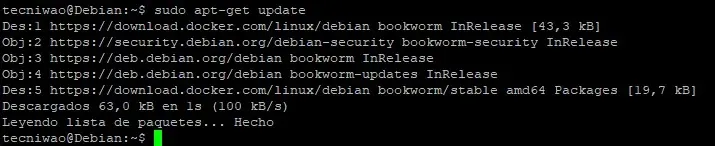
Update the package list to include the new repository:
sudo apt-get updateYou’ll see output similar to the following (the version may vary):
2. Install Docker on Debian 12
The installation is straightforward:
sudo apt-get install docker-ce docker-ce-cli containerd.io docker-buildx-plugin docker-compose-pluginThis command installs the necessary packages to work with Docker, including docker-ce (the Docker engine), docker-ce-cli (the command-line interface), containerd.io, docker-buildx-plugin and docker-compose-plugin. The installation requires approximately 479 MB.
This allows you to use all the features of Docker, including creating and managing containers, as well as using Docker Compose to define and run multi-container applications.
3. Verify the Installation of Docker on Debian 12
To verify that Docker has been installed correctly, you can test it with a basic container like hello-world or by using a docker-compose.yml file.
Test Docker with docker run
Run the following command to download and start the hello-world container:
sudo docker run -it --rm alpine echo "Hello from docker"If everything works correctly, you’ll see the following output in your terminal:

If you don’t see this output or receive an error, review the previous steps to ensure that everything has been done correctly.
Test Docker with docker compose
Create a docker-compose.yml file with the following content:
services:
  app:
    image: alpine
    command: ["echo", "Hello from docker"]
    container_name: "alpine-hola-docker"
Then, run the following command:
sudo docker compose up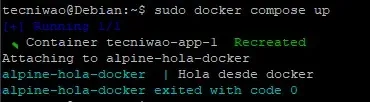
You should see output similar to that in the image. To remove the containers and networks created by Docker Compose, run:
sudo docker compose downWith this, you have Docker installed and running on your Debian 12 system.
Do You Want to Run Docker Without Using sudo?
If you want to avoid using sudo before each Docker command, you can add your user to the docker group. Be careful: This will give your user full control over all Docker containers on the server.
To add it, run:
sudo usermod -aG docker YOUR_USERNAMEReplace YOUR_USERNAME with your account username. After running this command, log out and log back in for the changes to take effect.
You can test it by running:
docker ps -aIf you don’t receive an error, congratulations! You can now use Docker without sudo.
Need to create an optimized Dockerfile for your project? Try our Dockerfile Generator.