How to Install sudo on Debian 12?
Published on March 25, 2024 · Niwo
- Don’t have access to the console? How do I switch to the root user?
- Install sudo
- Add our user to the “sudo” users group
- I installed sudo but cannot use commands with sudo?
- I added my user to the sudo group but still cannot use commands with sudo.
- Considerations when installing sudo and granting permissions to a user
If you’re wondering how to install sudo? or, more precisely, why Debian 12 doesn’t come with sudo by default?, it’s a common question when installing the operating system. This decision was made to reduce the size of the original Debian 12 Bookworm image.
However, performing this installation is simple following a few steps, but keep in mind that you must execute them from the root user.
Don’t have access to the console? How do I switch to the root user?
If you don’t have access to the operating system console for any reason and SSH doesn’t allow you to log in as root (since, by default, the sshd daemon usually has this option blocked for security), the solution is simple. You just need to place the following command in the console and use the root password to switch users:
bash
su
The process from here is straightforward: simply enter the key (which will not be displayed as you type it) and you will be in the root account. I'm attaching an image of what the result would look like:

## Installing sudo on Debian 12 Bookworm
### Update the package list:
This is important before starting any installation on Linux systems. We update the package list from the repositories that APT uses with the following command:
```bash
apt-get updateInstall sudo
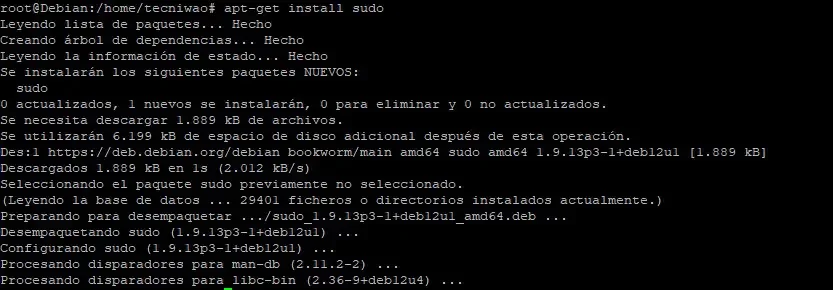
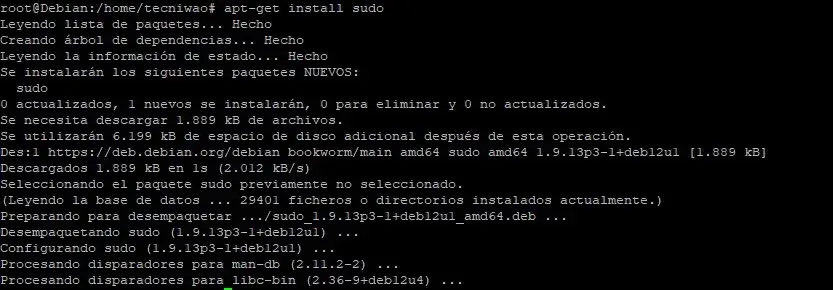
The installation of sudo is done like any other package in the Linux operating system using apt-get:
apt-get install sudoKeep in mind that this is only possible if you are on the root user. If you don’t have this access, you won’t be able to install sudo.
Add our user to the “sudo” users group
This is done with a single purpose: to give specific users permission to use the sudo command, since, by default, not all users can use it.
With the root user, run the following command:
sudo usermod -aG sudo your_usernameRemember to replace your_username with the name of the account you are going to add to the sudo group, or an error will occur.
Once entered, the user will be added and you can use the sudo command without problems in your main user, without needing to be root.
I installed sudo but cannot use commands with sudo?
If you get the message “user is not in the sudoers file”, as in the following image:

You must add your account to the “sudo” users group. This is a group that you can use to select who to give permission to access the sudo command.
I added my user to the sudo group but still cannot use commands with sudo.
This may be because the SSH session you are using still maintains previous privileges. The solution is as simple as disconnecting and reconnecting via SSH, so that you can use sudo.
It’s a fairly common case in quick installations, so a simple disconnection and reconnection usually solves the problem quickly.
Considerations when installing sudo and granting permissions to a user
You should keep in mind that once you install sudo, all users of the sudo group or specific users you assign will have permission to execute applications using the sudo command. This is an important security consideration:
Allowing the execution of any application as root allows making any modification to the operating system without difficulty. Therefore, it is a significant security risk.