Linux Umask Complete Guide: Understanding File Permissions and Defaults
Published on June 3, 2026 · Niwo
- What is Umask?
- Why Files and Directories Have Different Base Permissions
- How Umask Works
- The Formula in Detail
- Bitwise Complement View
- The Directory +x Rule
- Common Umask Values and What They Mean
- Choosing the Right Umask
- Umask in Octal vs Symbolic Mode
- Octal Mode
- Symbolic Mode
- Checking Current Umask
- Which Mode Should You Use?
- How to Set Umask
- System-Wide Configuration
- User-Specific Configuration
- Per-Command and Per-Session Umask
- Systemd Service Umask
- Umask for Shared Directories
- The 002 Strategy for Collaboration
- ACLs Override Umask Limitations
- Practical Workflow for Shared Hosting
- Security Considerations
- Why Restrictive Umask Matters
- Recommended Umask by Environment
- SSH Key Permissions — A Special Case
- Containerized Environments
- Troubleshooting Umask
- Mistake 1: Assuming the Same Base for All Files
- Mistake 2: Forgetting Directories Get the Execute Bit
- Mistake 3: Octal Subtraction Confusion
- How to Check the Current Umask
- Debugging Permission Issues
- The Effects of Different Filesystems
- Frequently Asked Questions
- What is the default umask in Linux?
- How do I check the current umask?
- What umask should I use for a shared directory?
- Umask 022 vs 002 — which one should I use?
- How do I permanently set umask?
- Conclusion
What is Umask?
Umask (short for user file-creation mode mask) is a fundamental Linux and Unix security mechanism that determines the default permissions assigned to every newly created file and directory. Whenever a process creates a file — whether it is touch, mkdir, a text editor saving a document, a compiler producing an object file, or a web server writing logs — the kernel applies the umask of that process to calculate the final permissions.
At first glance, this might seem like a minor detail. In practice, umask is one of the most impactful yet misunderstood configuration settings on any Linux system. A misconfigured umask can leave sensitive files world-readable, while an overly restrictive umask can break legitimate workflows in shared environments.
The core concept is simple: umask defines which permission bits to remove from the default base permissions. The kernel starts with a maximum base permission set — typically 666 (rw-rw-rw-) for files and 777 (rwxrwxrwx) for directories — and subtracts whatever the umask specifies.
Key insight: Every running process on a Linux system inherits a umask value. This includes your shell, system daemons, cron jobs, Docker containers, and SSH sessions. Understanding and controlling umask is essential for securing any Linux environment.
Why Files and Directories Have Different Base Permissions
The base permissions differ because files and directories serve fundamentally different purposes:
- Files default to
666(no execute bit) for safety — most files should not be executable unless explicitly made so. Adding the execute bit to a random text file could create a security hazard. - Directories default to
777(with execute bit) because the execute bit on a directory means “permission to enter/traverse” (cdinto it). Without the execute bit, a directory becomes inaccessible, which would break typical workflows.
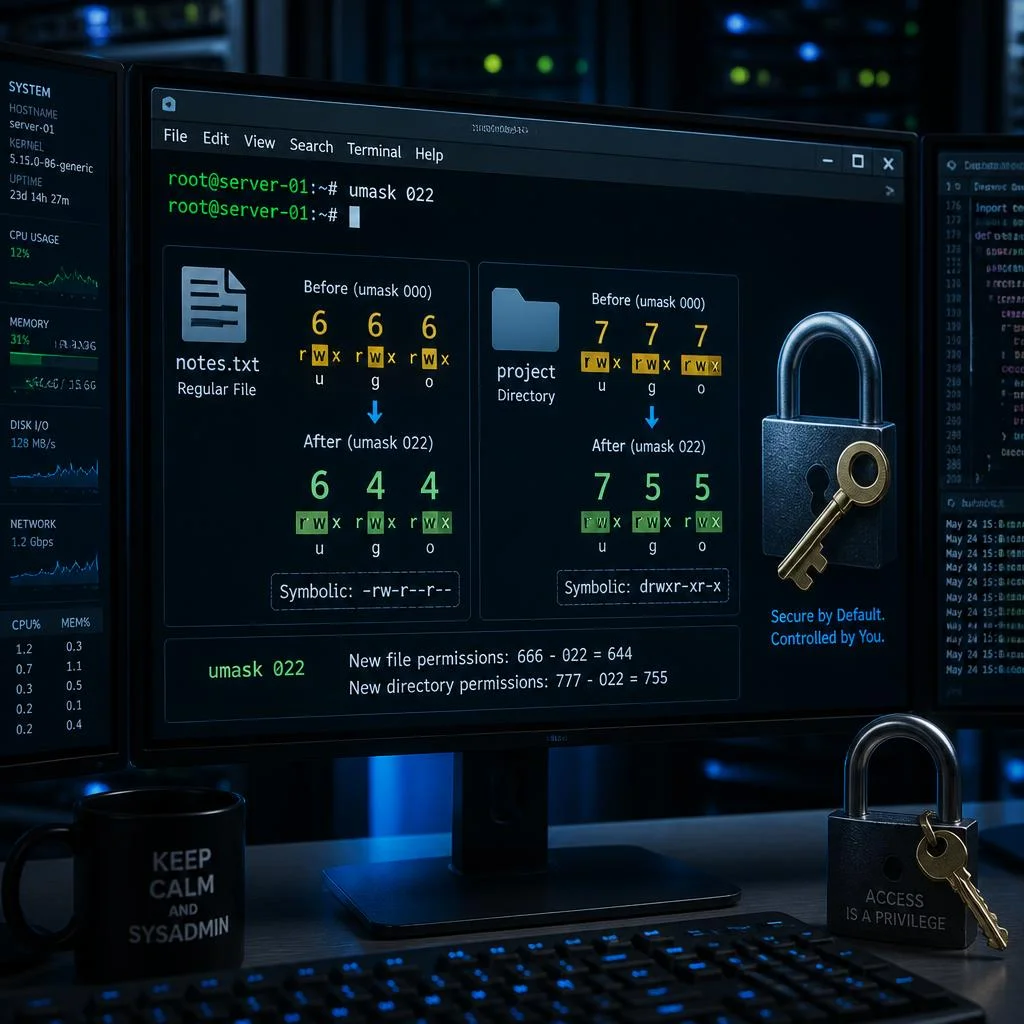
Umask respects this distinction automatically: a umask of 022 on a file produces 644 (rw-r—r—), while on a directory it produces 755 (rwxr-xr-x). The execute bit is added back for directories after the mask is applied.
How Umask Works
Umask operates through a straightforward subtraction model:
Default permissions = Base permissions − Umask valueThis is not arithmetic subtraction in the decimal sense — it is a bitwise operation where each digit (owner, group, others) is subtracted independently in octal. Think of it as: “start with the base, then turn off whatever bits the umask specifies.”
The Formula in Detail
Here is the precise calculation:
- Start with the base permissions:
666for files,777for directories. - Subtract the umask value digit by digit in octal (no borrowing across digits).
- The result is the default permissions the new file or directory will receive.
Let us walk through a concrete example. With a umask of 022:
For a file (base 666):
  rw- rw- rw-    (666)
- --- -w- -w-    (022)
= rw- r-- r--    (644)
For a directory (base 777):
  rwx rwx rwx    (777)
- --- -w- -w-    (022)
= rwx r-x r-x    (755)
A common point of confusion: 666 − 022 = 644 works out neatly because no borrowing is needed. But 666 − 033 = ? does NOT equal 633. Let us check:
  rw- rw- rw-    (666)
- --- -wx -wx    (033)
= rw- r-- r--    (644)  ← NOT 633
Why? Because in octal subtraction, each digit is independent. The 3 in octal is 011 in binary (write and execute bits). Subtracting -wx from rw- for the group and others positions means we try to remove the write bit (which exists) and the execute bit (which does not exist in the file base). The execute bit was never set, so removing it has no effect — only the write bit is cleared. The result is r-- (4), not -w- (3).
Bitwise Complement View
A more technically precise way to understand umask is through bitwise complement:
permissions = base_permissions & ~umaskThe kernel applies AND with the bitwise NOT of the umask. This means: take the base permissions and clear every bit that is set in the umask.
For example, umask 022 (binary 000 010 010):
~022=111 101 101666 & ~022=110110110 & 111101101=110100100=644
This bitwise view explains why setting umask bits that are already zero in the base (like the execute bit on a file) has no effect — you cannot clear what is already cleared.
The Directory +x Rule
One of the most frequently overlooked behaviors: directories automatically gain the execute bit even when the umask would seem to strip it. This is because the kernel performs an effective OR with the execute bit on directories. A directory without the execute bit cannot be entered or traversed, so the system ensures it is always present on newly created directories.
The practical consequence: with umask 077, new files get 600 (rw-------) and new directories get 700 (rwx------). The execute bit appears on the directory even though the umask would remove it — the kernel adds it back after applying the mask.
Common Umask Values and What They Mean
The table below shows the most frequently used umask values, their resulting permissions for files and directories, and their typical use cases. Use our Umask Calculator to experiment with any value interactively — it supports forward and reverse calculation with a live ls -l preview.
| Umask | File Perms | Dir Perms | Use Case |
|---|---|---|---|
000 | 666 (rw-rw-rw-) | 777 (rwxrwxrwx) | No restriction — completely open. Rarely used in production; extreme security risk. |
002 | 664 (rw-rw-r—) | 775 (rwxrwxr-x) | Shared collaboration — group members can write, others read-only. Common in development teams and Git repositories. |
007 | 660 (rw-rw----) | 770 (rwxrwx---) | Group-only access — group members have full access, others get none. Used for project directories in shared hosting. |
022 | 644 (rw-r—r—) | 755 (rwxr-xr-x) | Default (most distros) — owner writes, everyone reads. Standard for personal workstations and single-user servers. |
027 | 640 (rw-r-----) | 750 (rwxr-x---) | Group read, no others — owner writes, group reads, others denied. Recommended for web servers and application deployments. |
077 | 600 (rw-------) | 700 (rwx------) | Private only — only the owner can access. Essential for SSH keys, credentials, and sensitive data directories. |
0777 | 000 (---------) | 000 (---------) | No permissions at all — extreme lockdown. Rare, but useful for temporary directories where no default access should be granted. |
Choosing the Right Umask
- Personal workstation (single user):
022— balances convenience with reasonable security. Your files are readable by system services and other users on the same machine, which most desktop Linux users accept. - Production web server:
027— ensures that files are readable by the web server process group but not by unrelated users. This is the recommended value for shared hosting environments and application servers. - Multi-user development server:
002— enables group collaboration. Team members in the same Unix group can edit each other’s files withoutsudo. Combine with the setgid bit on shared directories for seamless workflow. - Security-sensitive environment (PCI-DSS, HIPAA):
077— locks everything to the owner. Any process or user that needs access must be explicitly granted it. This is the standard for SSH key storage (~/.ssh), credential files, and certificate private keys.
💡 Interactive reference: Use our Umask Calculator to see how each umask value affects file and directory permissions in real time. Enter any umask in octal or symbolic mode and get the resulting
ls -loutput instantly.
Umask in Octal vs Symbolic Mode
Linux supports two syntaxes for specifying umask: the classic octal mode (numeric) and the more readable symbolic mode.
Octal Mode
The octal mode is the most common and concise form. The umask is expressed as a three-digit (or four-digit with leading zero) octal number:
umask 022   # Files: 644, Dirs: 755
umask 027   # Files: 640, Dirs: 750
umask 002   # Files: 664, Dirs: 775
The digits represent, from left to right: owner (user), group, and others. Each digit is the sum of the bits to remove:
4= read (r) — remove read permission2= write (w) — remove write permission1= execute (x) — remove execute permission
So umask 027 means: remove nothing from owner (0), remove write from group (2), remove write and execute from others (7 = 4+2+1).
A leading zero (e.g., 0022) can indicate a four-digit umask. In practice, the first digit is almost always 0 and refers to special mode bits (suid, sgid, sticky). Setting these bits in the umask prevents newly created files from inheriting suid/sgid permissions.
Symbolic Mode
Symbolic mode is more explicit and self-documenting. The format uses the same letters as chmod:
umask u=rwx,g=rx,o=rx   # Equivalent to 022
umask u=rwx,g=rx,o=     # Equivalent to 027
umask u=rwx,g=rwx,o=rx  # Equivalent to 002
In symbolic mode, you specify the permissions you want to keep rather than the bits to remove. This is the inverse of octal mode and can be more intuitive:
u=rwx,g=rx,o=rxmeans: owner keeps all, group keeps read+execute, others keep read+execute.- This translates to removing: nothing from owner, write from group, write from others →
022.
Checking Current Umask
Both syntaxes work for checking your current umask:
$ umask        # Octal output
0022

$ umask -S     # Symbolic output
u=rwx,g=rx,o=rx
The -S flag is particularly useful when auditing scripts or system configuration files, as it makes the permission intent immediately clear.
Which Mode Should You Use?
Octal is the standard in shell configuration files (/etc/profile, ~/.bashrc) because it is compact and universally understood. Symbolic is better in documentation and scripts where readability matters, as it eliminates the mental arithmetic of octal subtraction.
How to Set Umask
Umask can be configured at multiple levels, from system-wide defaults down to individual commands.
System-Wide Configuration
Global shell initialization — affects all users logging in via shell:
# /etc/profile or /etc/bash.bashrc
umask 022
PAM-based configuration — applies to all users regardless of shell:
# /etc/login.defs
UMASK 022
Systemd user manager — affects user services:
# ~/.config/systemd/user.conf
[Manager]
DefaultUmask=022
On Debian and Ubuntu systems, the default umask is typically set in /etc/login.defs and /etc/pam.d/common-session. Some distributions also source /etc/bashrc or /etc/profile.d/*.sh scripts that set umask values.
User-Specific Configuration
Most users set their umask in their shell’s startup files:
# ~/.bashrc — applies to interactive non-login shells
umask 022

# ~/.profile — applies to login shells
umask 027

# ~/.zshrc — for Zsh users
umask 022
Important: ~/.bashrc is read for interactive non-login shells (terminal emulators), while ~/.profile (or ~/.bash_profile) is read for login shells (SSH sessions, console logins). For consistent behavior across all sessions, set umask in both files or source one from the other.
Per-Command and Per-Session Umask
You can override umask for a single command using a subshell:
# Run one command with a different umask
(umask 077 && touch secret.txt)

# The parent shell retains its original umask
umask  # still shows 022
This pattern is extremely useful in scripts and cron jobs where you want tight permissions for sensitive files without affecting the rest of the environment:
#!/bin/bash
# Backup script: create archives with restricted permissions
(umask 077 && tar -czf backup-$(date +%F).tar.gz /important/data)
# Log file with broader permissions
(umask 022 && echo "Backup completed" >> /var/log/backup.log)
Systemd Service Umask
For services managed by systemd, set umask in the unit file:
[Service]
UMask=0027
This is the recommended way to control the file creation mask for daemons like Nginx, Apache, PostgreSQL, and custom application services. You can override it using systemctl edit <service> to create a drop-in:
systemctl edit nginxThen add:
[Service]
UMask=0027
Umask for Shared Directories
Shared directories — where multiple users need to collaborate on the same set of files — present a special umask challenge. The default 022 umask creates files with 644 permissions, which means only the file owner can write. Other group members must use sudo or chmod after every file creation, which is impractical.
The 002 Strategy for Collaboration
Setting umask to 002 across a team’s shared directories produces 664 (rw-rw-r—) for files and 775 (rwxrwxr-x) for directories. Any user in the same group can read and write files created by anyone else in that group.
To make this work reliably:
- Create a common group for the project:
sudo groupadd webteam
sudo usermod -aG webteam alice
sudo usermod -aG webteam bob- Set the setgid bit on the shared directory. This forces all new files and subdirectories to inherit the group of the parent directory:
sudo mkdir /var/www/project
sudo chgrp webteam /var/www/project
sudo chmod g+s /var/www/project # setgid- Configure a default ACL to apply the
002policy automatically, regardless of individual user umask settings:
setfacl -R -m g::rwx /var/www/project
setfacl -R -m d:g::rwx /var/www/project   # default ACL for new items
ACLs Override Umask Limitations
Access Control Lists (ACLs) provide a more robust solution than umask alone for shared environments. A well-configured ACL can guarantee minimum permissions regardless of what umask each user has set:
# Ensure group always has rwx on /data/share and all new content
setfacl -R -m g:webteam:rwx /data/share
setfacl -R -m d:g:webteam:rwx /data/share
With this ACL in place, even if a user has umask 077, new files in /data/share will still grant group read/write access because the ACL enforces it. This is a powerful pattern for:
- CI/CD directories where build artifacts must be accessible by deployment tools.
- Shared repositories (Git, SVN) where multiple developers push code.
- Upload directories in web applications where the web server and administrators both need access.
Important caveat: When a default ACL is set on a directory, the kernel combines the ACL mask with the umask. The effective permissions are the intersection of what the ACL grants and what the umask allows. A user with
umask 077in an ACL-protected directory will still be restricted — the ACL guarantees a maximum, not a minimum. Educate your team about this interaction.
Practical Workflow for Shared Hosting
For a typical shared hosting environment with multiple developers:
# Setup (one time)
sudo groupadd developers
sudo usermod -aG developers $USER

# Per project
sudo mkdir -p /srv/projects/myapp
sudo chgrp developers /srv/projects/myapp
sudo chmod g+ws /srv/projects/myapp   # setgid + group write
setfacl -R -m g:developers:rwx /srv/projects/myapp
setfacl -R -m d:g:developers:rwx /srv/projects/myapp

# Each user adds to their ~/.bashrc:
umask 002
Now every developer in the developers group can create, edit, and delete files inside the project directory without permission errors — and the setgid bit ensures new subdirectories maintain the correct group.
Security Considerations
Umask is a defense-in-depth control. While it does not replace proper access control policies, it reduces the attack surface by ensuring that newly created files do not accidentally expose sensitive data.
Why Restrictive Umask Matters
Consider this scenario: a system administrator runs a backup script that dumps a database to a file. If the umask is 022, the dump file is created with 644 permissions — readable by every user on the system. Any local user with a shell account can read the database credentials and customer data. A umask of 077 would have restricted that file to the owner only, containing the breach to accounts that already have root or sudo access.
Real-world examples of umask-related vulnerabilities:
- SSH private keys (
id_rsa,id_ed25519): SSH strictly requires these to have600permissions. If your umask produces more permissive files,sshwill refuse to use the key with a “bad permissions” error. This is a common frustration when generating keys on systems with non-standard umask configurations. - Web application
.envfiles: Framework configuration files containing API keys, database passwords, and encryption secrets should never be world-readable. A restrictive umask is an additional safety net beyond proper file ownership. - Log directories: Application logs may contain PII, session tokens, or debugging output. A umask of
022makes them readable by all local users.
Recommended Umask by Environment
| Environment | Recommended Umask | Rationale |
|---|---|---|
| Desktop Linux (single user) | 022 | Standard, minimal surprise |
| Production web server | 027 | Group access for ops, deny others |
| Shared hosting / dev server | 002 (with ACLs) | Collaboration without sudo |
| Docker containers | 027 or 077 | Minimize surface inside container |
| CI/CD runners | 077 | Temporary secrets, build artifacts |
| HPC / research cluster | 007 | Group collaboration, no world access |
| PCI-DSS / HIPAA environment | 077 | Strict data isolation |
SSH Key Permissions — A Special Case
OpenSSH is famously strict about key file permissions:
~/.ssh/id_rsa must be 600 (or less permissive)
~/.ssh/ must be 700 (or less permissive)
~/.ssh/config must be 600 (or less permissive)
~/.ssh/authorized_keys must be 600 (or less permissive)
If your umask is too permissive when generating SSH keys, you will see:
@@@@@@@@@@@@@@@@@@@@@@@@@@@@@@@@@@@@@@@@@@@@@@@@@@@@@@@@@@@
@         WARNING: UNPROTECTED PRIVATE KEY FILE!          @
@@@@@@@@@@@@@@@@@@@@@@@@@@@@@@@@@@@@@@@@@@@@@@@@@@@@@@@@@@@
Permissions 0644 for '/home/user/.ssh/id_rsa' are too open.
The fix is straightforward: set umask to 077 before generating keys, or fix permissions afterward:
umask 077
ssh-keygen -t ed25519 -C "[email protected]"
# Or fix existing keys:
chmod 600 ~/.ssh/id_ed25519
chmod 700 ~/.ssh
Containerized Environments
In Docker containers, umask behavior depends on the base image and entrypoint. Many official images set umask to 022 by default. For containers handling sensitive data:
# Dockerfile
FROM alpine:latest
RUN umask 027
# or set it in the entrypoint
COPY entrypoint.sh /entrypoint.sh
RUN chmod +x /entrypoint.sh
ENTRYPOINT ["/entrypoint.sh"]
#!/bin/sh
# entrypoint.sh
umask 027
exec "$@"For Kubernetes deployments, you can set the umask via a security context or init container:
securityContext:
  runAsUser: 1000
  runAsGroup: 1000
  capabilities:
    add: ["SETUID", "SETGID"]
However, Kubernetes does not directly expose a umask field — you must handle it in your container’s entrypoint script.
Troubleshooting Umask
Umask misconfigurations are a common source of permission-related issues on Linux systems. Here are the most frequent problems and how to diagnose them.
Mistake 1: Assuming the Same Base for All Files
The most common umask mistake is forgetting that files and directories have different base permissions. A umask that produces 755 directories will produce 644 files, not 755 files. New sysadmins often expect executable scripts to be created with the execute bit set, but umask does not add bits — it only removes them.
Fix: Make scripts executable explicitly with chmod +x script.sh. Do not rely on umask to produce executables.
Mistake 2: Forgetting Directories Get the Execute Bit
When calculating permissions manually, it is easy to forget that the kernel adds the execute bit back for directories after applying the mask. This is by design — a directory without +x cannot be entered — but it can confuse manual calculations.
Example: With umask 111, the calculation for a file is 666 - 111 = 555 (r-xr-xr-x). But for a directory, 777 - 111 = 666 (rw-rw-rw-), and then the kernel adds execute back: rwxrwxrwx (777). This is identical to umask 000 for directories — a result that often surprises people.
Mistake 3: Octal Subtraction Confusion
As explained earlier, octal subtraction is digit-wise independent. 666 - 033 does not equal 633. The 3 in octal represents -wx. Since files do not have the execute bit in their base (666), removing wx only clears the write bit, leaving 644.
This confusion is so widespread that many sysadmins advocate using the symbolic mode (umask -S) exclusively for readability.
How to Check the Current Umask
# Current shell's umask
umask
umask -S

# Another user's umask (if you have access)
sudo -u www-data bash -c 'umask'

# Umask of a running process
cat /proc/<PID>/status | grep Umask

# For a specific process by name
pgrep -x nginx | while read pid; do
  echo "PID $pid: $(cat /proc/$pid/status | grep Umask)";
done
Debugging Permission Issues
When a user complains about “permission denied” on a newly created file, walk through this checklist:
- Check the file permissions:
ls -la filename— are they what you expect? - Check the creating user’s umask:
sudo -u $USER bash -c 'umask' - Check the parent directory’s permissions and ACLs:
getfacl /path/to/dir - Check the filesystem mount options:
mount | grep /path— some filesystems (like NFS withall_squash) ignore umask. - Check if SELinux or AppArmor is involved:
ls -Z filename— MAC systems can override standard permissions.
The Effects of Different Filesystems
Umask behavior can vary across filesystems:
- ext4, XFS, Btrfs: Standard POSIX umask behavior.
- FAT32 / exFAT / NTFS (via FUSE): These filesystems do not support Unix permissions natively. The mount options (
uid=,gid=,fmask=,dmask=) control effective permissions, and the kernel-side umask has limited effect. - NFS: The server-side umask and the
no_all_squash/all_squashexport options interact with the client’s umask. NFSv4 with Kerberos adds another layer of complexity. - tmpfs / ramfs: Full POSIX umask support.
# Example: mounting a FAT32 USB drive with explicit permissions
sudo mount -t vfat -o uid=1000,gid=1000,fmask=113,dmask=002 /dev/sdb1 /mnt/usb
# fmask=113 → 664 for files, dmask=002 → 775 for directories
Frequently Asked Questions
What is the default umask in Linux?
The default umask varies by distribution:
| Distribution | Default Umask | File Result | Dir Result |
|---|---|---|---|
| Ubuntu / Debian | 022 | 644 | 755 |
| RHEL / CentOS / Fedora | 022 | 644 | 755 |
| Arch Linux | 022 | 644 | 755 |
| Alpine Linux | 022 | 644 | 755 |
| openSUSE | 022 | 644 | 755 |
The /etc/login.defs file controls the system-wide default. Most modern distributions default to 022, which has been the standard since the 1990s. Some security-hardened distributions (like SELinux-enabled variants or government-standard builds) may default to 027 or 077.
How do I check the current umask?
Run the umask command without arguments to see the current value in octal:
$ umask
0022
For symbolic output (more readable):
$ umask -S
u=rwx,g=rx,o=rx
To check the umask of a running process (e.g., a web server):
$ cat /proc/$(pgrep -x nginx | head -1)/status | grep Umask
Umask:  0022
What umask should I use for a shared directory?
For a shared directory where multiple users in the same group need to collaborate, use umask 002. This produces 664 (rw-rw-r—) for files and 775 (rwxrwxr-x) for directories, allowing all group members to read and write each other’s files.
For maximum collaboration without world access, combine umask 002 with:
- A dedicated Unix group for the project
- The setgid bit (
chmod g+s) on the shared directory - Default ACL rules (
setfacl -m d:g:groupname:rwx) for consistent behavior regardless of individual umask settings
See the Umask for Shared Directories section above for a complete walkthrough.
Umask 022 vs 002 — which one should I use?
| Aspect | 022 | 002 |
|---|---|---|
| File result | 644 (rw-r—r—) | 664 (rw-rw-r—) |
| Dir result | 755 (rwxr-xr-x) | 775 (rwxrwxr-x) |
| Group write | No | Yes |
| Others read | Yes | Yes |
| Best for | Single-user, personal | Multi-user, team collaboration |
Choose 022 for personal workstations, single-user servers, and environments where files should not be accidentally modified by other group members.
Choose 002 for development servers, shared hosting, CI/CD pipelines, and any environment where multiple users in the same group need to write to shared files without escalating privileges.
If security is a priority, consider 027 instead of 022 — it denies read access to others while keeping group collaboration intact.
How do I permanently set umask?
To make umask changes persistent across reboots and login sessions:
-
For all users: Add
umask 027to/etc/profileor/etc/bash.bashrc. This affects all users of the Bourne-compatible shells. -
For all login users via PAM: Edit
/etc/login.defsand setUMASK 027. This affects login shells regardless of the shell type (sh, bash, zsh, etc.). -
For a specific user: Add
umask 027to~/.bashrc,~/.profile, or~/.zshrc. Remember that~/.bashrcis for interactive non-login shells and~/.profileis for login shells. Add to both for full coverage. -
For systemd services: Use
UMask=0027in the[Service]section of the unit file or a drop-in override viasystemctl edit <service>.
After making changes, verify with a new login session:
ssh user@host 'umask' # Should show 0027Conclusion
Umask is one of those Linux fundamentals that seems simple on the surface but reveals increasing depth the more you work with it. Understanding how the subtraction model works — and its limitations — is essential for every sysadmin, DevOps engineer, and Linux user who cares about security.
Here is a quick summary of what to remember:
- Umask subtracts permission bits from the base (
666for files,777for directories). - Files never gain the execute bit through umask — use
chmod +xexplicitly. - Directories automatically regain the execute bit after umask application — this is normal.
022is the universal default but may not be right for your use case.002enables group collaboration without privilege escalation.027is the recommended minimum for production servers.077is mandatory for SSH keys, credentials, and sensitive data.- ACLs complement umask in shared environments and provide finer-grained control.
- Always verify with
umaskandls -labefore assuming permissions are correct.
The most important habit you can develop: be intentional about your umask. Do not accept the default without understanding whether it serves your security needs. A few seconds spent setting the right umask can save hours of permission debugging — and prevent data exposure incidents.
Ready to master umask calculations? Use the Tecniwao Umask Calculator to test any umask value instantly. Enter a umask in octal or symbolic mode, see the resulting file and directory permissions in ls -l format, view the bit-level breakdown, and even reverse-calculate which umask produces a target permission set. No signup required, results in real time.