Enable Encrypted DNS Queries in Windows 11 with DNS over HTTPS
Published on March 20, 2023 · Niwo
You’re probably wondering how to encrypt DNS using DNS over HTTPS (DoH) in Windows without needing external programs, and doing so at the operating system level. In this article, we explain how to achieve this natively from Windows, simply and with automatic templates.
How to Enable DNS over HTTPS in Windows 11?
The steps are as follows: keep in mind that, in this case, we will be using Google and Cloudflare’s DNS servers. If you prefer another provider, check if Windows already has an automatic template for that DNS or if you need to add it manually. Without further ado, here are the steps to follow:
-
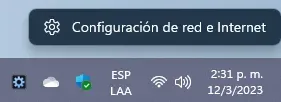
Open the network settings of Windows: Right-click on the internet connection icon (in my case, a Wi-Fi adapter) as shown in the following image.
-
Click on the Ethernet or Wi-Fi button: This applies to all connection methods, whether wired or wireless. You must edit each connection individually, but the settings are the same.

-
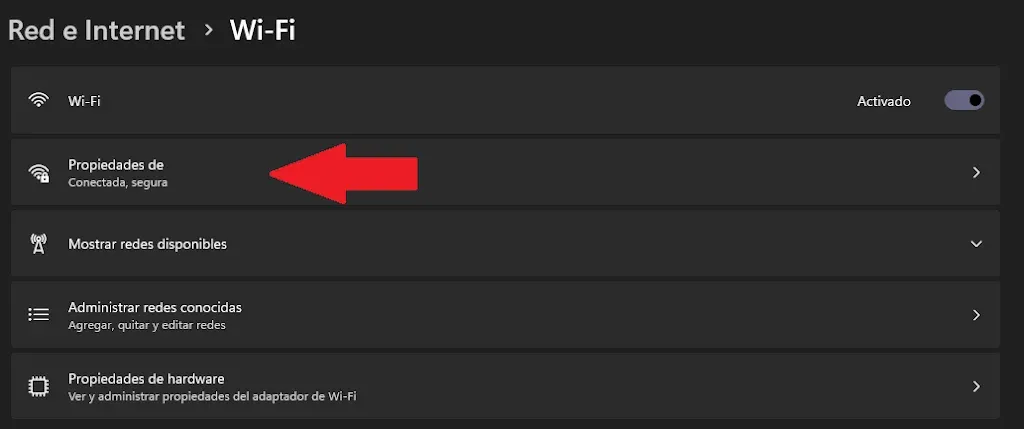
(Only Wi-Fi) Click on “Properties of (Your Wi-Fi Name)”: This step is exclusive to Wi-Fi connections, as it requires an additional step before reaching the DNS settings.
-
Select the “Manual” option in the DNS section: Enter the following configuration, as shown in the image, to set the primary DNS server to Google (8.8.8.8) and the secondary server to Cloudflare (1.1.1.1).
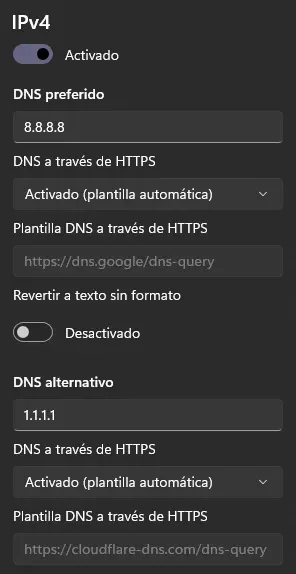
When using the DNS template directly, Google will automatically complete the URL needed to establish an HTTPS connection. If the field is left blank, it’s possible that Windows doesn’t have a template for that particular DNS. In this case, you will need to write it manually if you know the URL or if the DNS provider allows this type of connections.
-
That’s it! You now have your encrypted DNS over HTTPS. It is important to verify that this configuration is effective.
To confirm, check that the label “Encrypted” appears next to the DNS address, as shown below.

Need to generate DNS zone files in BIND9 format? Try our DNS Zone Generator.