How to Navigate the Internet with Google Chrome Without Using the Mouse.
Published on April 11, 2023 · Niwo

- How to open a new tab in Google Chrome with the keyboard
- How to move between tabs in Google Chrome with the keyboard
- How to close a tab in Google Chrome with the keyboard
- How to open a new incognito tab in Google Chrome with the keyboard
- How to switch between open windows in Chrome without using the mouse
- Where can I see more commands to manipulate Google Chrome without a mouse?
There are many occasions when, for whatever reason, you may not want or be able to use the mouse to move between different tabs or windows in Google Chrome. Here’s a quick guide on how to do it easily, intuitively and, above all, quickly.
How to open a new tab in Google Chrome with the keyboard
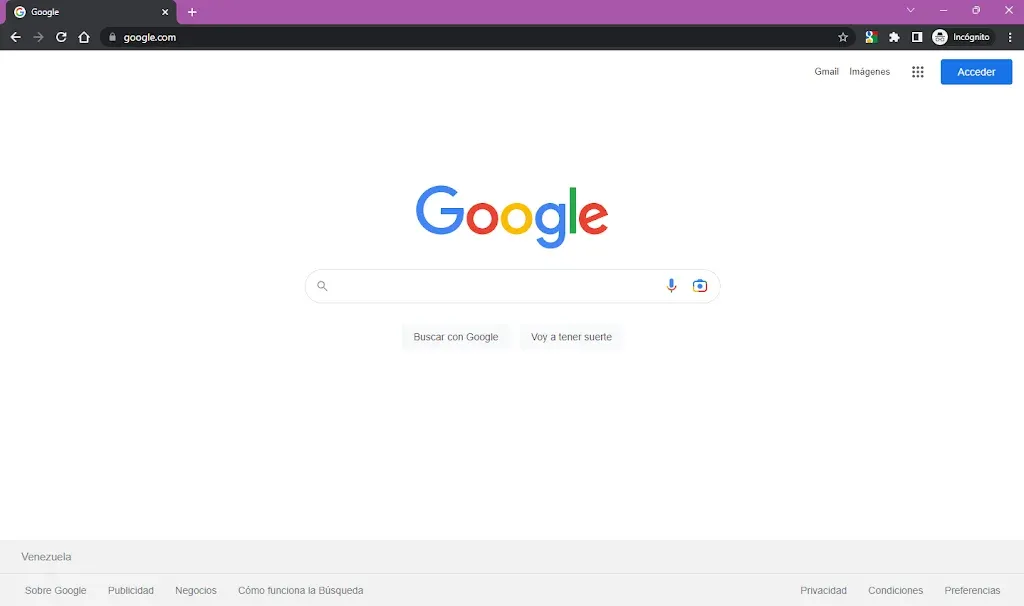
It may seem complicated, but actually manipulating Google Chrome with the keyboard is extremely simple. The easiest way to open a new tab is by pressing “Ctrl + T” in that order: first the Ctrl key and then the letter “T”. You can even open multiple tabs if you press “T” several times.
How to move between tabs in Google Chrome with the keyboard
Moving between the different tabs of Google Chrome is quite simple, at least for the first nine, as you only need to click Ctrl + 1 to go to the first tab, Ctrl + 2 to go to the second and so on until Ctrl + 8. The only variation to this key combination is Ctrl + 9, which will move you to the last tab, even if you have more than nine tabs open. You’ll always end up at the last one.
How to close a tab in Google Chrome with the keyboard
Now that you’ve learned how to open tabs, you may also be interested in closing them to avoid a mess if you don’t want to use the mouse. This is as simple as pressing Ctrl + F4. Be careful! It’s not about pressing “F” and then “4”, but the function key F4 that you have on your numeric keypad. This will close the tab you have open, so be careful when using it carelessly.
How to open a new incognito tab in Google Chrome with the keyboard
If for any reason you don’t want to open a normal new tab, but an incognito one, it’s as simple as pressing Ctrl + Shift + T. This will open a new tab in a completely new incognito window, ideal if you are testing new features on a website and want to see it as if it were the first time you visit it.
How to switch between open windows in Chrome without using the mouse
Opening a new window is also possible, but you should keep in mind that it will leave the one you had open behind. This isn’t really a problem, since with the “Tab” key you can switch between the different windows you have open, which makes it easier to find the previous one without resorting to the mouse.
Where can I see more commands to manipulate Google Chrome without a mouse?
Google Chrome shows you the commands directly in each of its options, right next to them, as seen in the image.
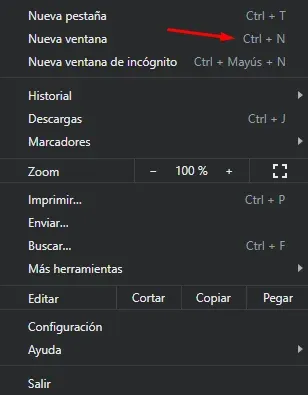
But we tend to overlook them. That’s why this article reminds you where you can find them more easily and, if they are not enough, the help of the search engine itself can give you even more details. We leave you a direct link to it:
Click to go to Google Chrome Help