Using Redis with Docker Compose: Easy and Fast
Published on April 3, 2024 · Niwo
Deploying a Redis container in Docker Compose is incredibly simple, and even more useful if you can expose it and use it for your developments in seconds.
Keep in mind that you will need at least one virtual machine with Docker installed to follow this tutorial. If you are new to this, we recommend taking a look at these articles:
Running Redis with docker run
To run Redis with a simple docker run command, it’s important to consider that you will expose the entire Redis service to your server’s IP address. Do not use this method in environments directly exposed to the Internet, as the Redis container does not have security by default.
bash
docker run -d -p 6379:6379 redis
This command will create a Redis container accessible through port 6379. It is ideal for closed environments or development, where it is only used by the service that requires Redis.

Keep in mind that this Redis does not have any volume mounted, so the written data will not be backed up anywhere. Consider this if you need data persistence.

## Docker Compose for Redis with Persistence

To achieve the same functionality but using Docker Compose and, **most importantly, maintain data persistence** by a volume that saves at least one copy of the database every 180 seconds, you can use the following `docker-compose.yml` file:

```yaml
services:
  redis:
    container_name: "redis"
    image: redis:latest
    restart: always
    deploy:
      resources:
        limits:
          memory: 1024M
    ports:
      - "6379:6379"
    command: redis-server /redis-config/redis.conf
    volumes:
      - ./redis-data:/data
      - ./redis-config:/redis-config
This Docker Compose limits Redis memory to 1024 MB to prevent excessive consumption.
Here’s a simplified configuration of the redis.conf file:
./redis-config/redis.conf
#IP and port
bind 0.0.0.0
port 6379

# Memory policies
maxmemory 1024mb
maxmemory-policy allkeys-lru

# Persistence
save 180 1
stop-writes-on-bgsave-error no

# Persistence compression
rdbcompression yes
This file should be created in a folder called /redis-config located in the same directory as docker-compose.yml.
Finally, run docker compose up to start the Redis service and connect through port 6379 of the machine where the containers are running.
Why use Docker?
Using Docker greatly simplifies rapid and easy deployment in development environments, facilitating the implementation of this in-memory database engine. In addition, with Redis Stack, you can deploy it along with RedisInsight.
What is RedisInsight?
RedisInsight is a graphical interface for accessing Redis environments. Although not ideal for production, it is very useful for development, as it reduces the complexity of the system and allows you to visualize everything graphically.
However, for production environments, it is better to use lighter containers like Redis or Redis Stack Server, which do not include RedisInsight.
How to deploy Redis with RedisInsight?
To access Redis with RedisInsight, you can use the Docker image “redis-stack”, which includes both Redis and RedisInsight. You must open port 8001 to be able to use RedisInsight:
services:
  redis:
    container_name: "redis"
    image: redis/redis-stack:latest
    restart: always
    ports:
      - "6379:6379"
      - "8001:8001"
    volumes:
      - ./redis-data:/data
Once executed, you will be able to access RedisInsight through port 8001 and review all the information you need. As shown in the following image:
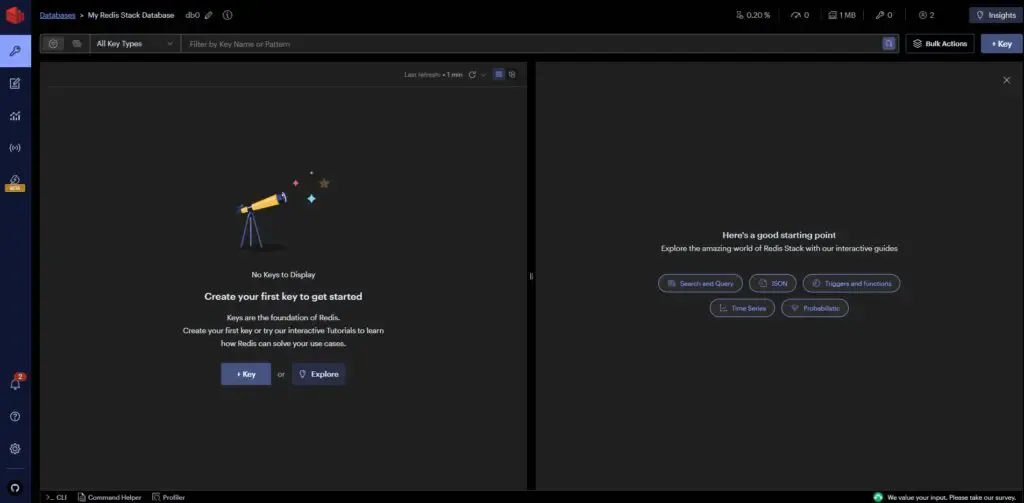
Remember that this container does not have protection, so it is more suitable for development than for production.
Need to create a docker-compose.yml file? Try our Docker Compose Generator.