Viewing Docker Containers | Commands and Explanation
Published on April 1, 2024 · Niwo
If you’re wondering how to view Docker containers, this article shows you the easiest ways to do so. These are simple but very useful methods for both the Linux and Windows terminals.
Viewing Containers Using Docker Desktop
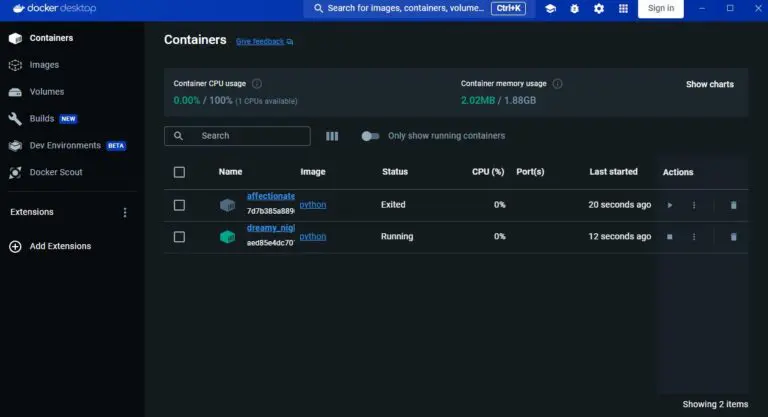
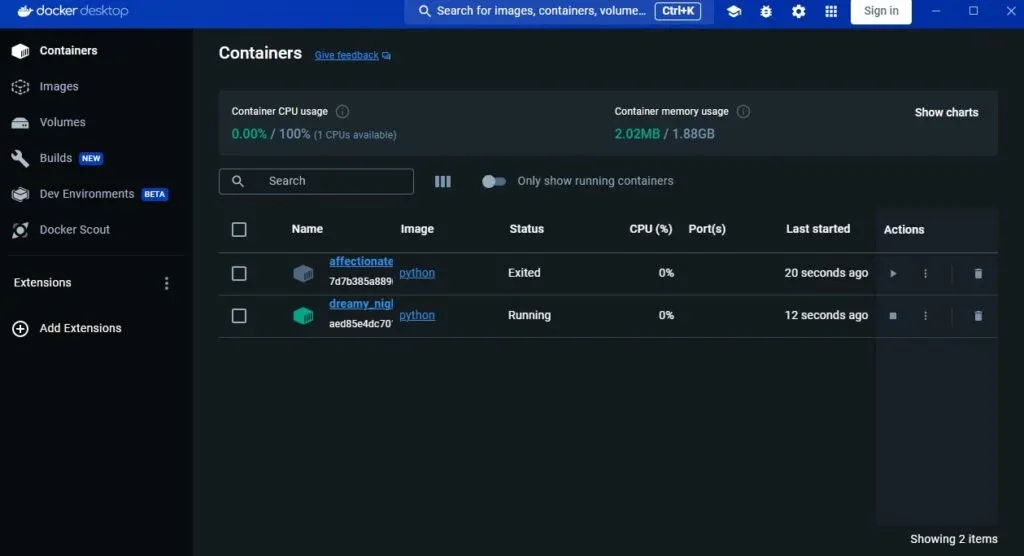
This is the simplest way if you’re in a testing environment. Simply open the Docker Desktop application and you’ll have all the information at your fingertips. You can see the containers that are running, those that aren’t, and even the current status of each one.
Viewing Containers Using the Terminal (CLI)
This option is very versatile, and there are two main ways to check the status of your containers with Docker without needing a Linux environment or similar. This allows you to manage them even on remote servers.
Using docker ps
The command that provides more details is: bash docker ps
This command shows the containers that are running and active at the current moment. It's very useful for getting a quick idea of what’s running in Docker. It provides the following information:
* **Container ID:** The unique identifier of the container.
* **Image:** The image used by the container, including its version.
* **Command:** The command being executed within the container and that keeps it active.
* **Created:** The creation date of the container.
* **Status:** If you have a Health Check configured, it will show the current status. Otherwise, it indicates how long it has been in its current state.
* **Ports:** Shows the ports exposed by each container and whether there is an external NAT associated with them.
* **Name:** The name assigned to the container.
As you can see, it's a very complete command that provides a lot of information about what’s running in your Docker environment.
It's important to note that `docker ps` **is not a real-time command**. It only shows a snapshot of what is currently running.
#### Example output of `docker ps`

### Using `docker stats`
Unlike the previous command, `docker stats` provides less data but allows you to see real-time CPU and Memory usage for the containers that are running. This is very useful for monitoring the performance of your Docker services.
```bash
docker statsWith this command, you’ll get a real-time view of your Docker status, as shown in the following image:

To stop the command and return to the terminal, simply press Ctrl + C. This detail is not explicitly stated in the command documentation, so it can be confusing for beginner users.
Viewing Containers Through a Web Interface (Portainer)
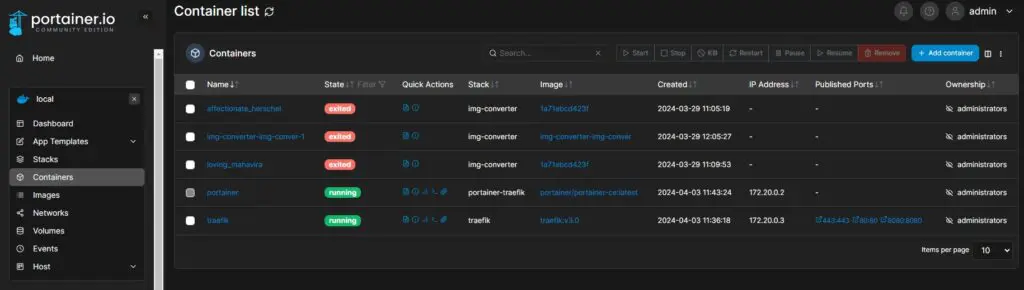
Portainer is a very useful tool for those who use Docker and want to have an overview of their environment. It offers a web graphical interface that facilitates the management of multiple aspects of Docker, including visualizing running containers.
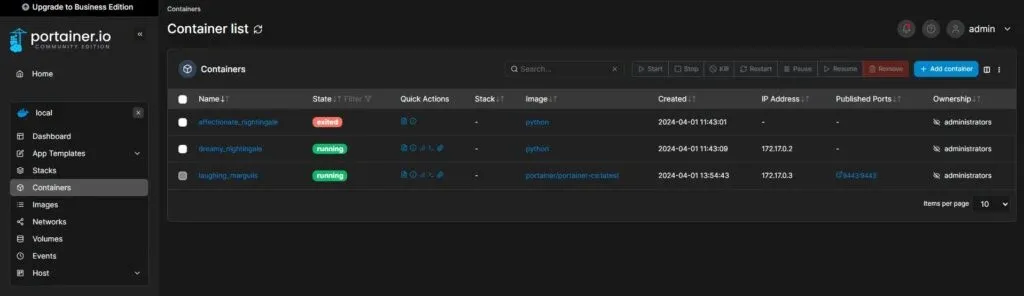
If you want to learn how to install Portainer and give it access to the Docker socket so that you can review your services from there, we recommend checking out the following article:
Conclusion about Docker
As you’ve seen, there are multiple ways to view containers and know what is running at any given moment on your server or Docker service. This allows you to monitor whether your applications are functioning correctly or if they have any problems.
An additional advantage that Docker offers is the ability to visualize the health status of applications thanks to Health Checks. With these, you can easily determine if an application is running but not working correctly, which is especially useful in production environments.
Need to generate docker run commands with ports, volumes and more? Try our docker run Generator.