Input Director | Control Two PCs with One Keyboard and Mouse
Published on February 20, 2019 · Niwo
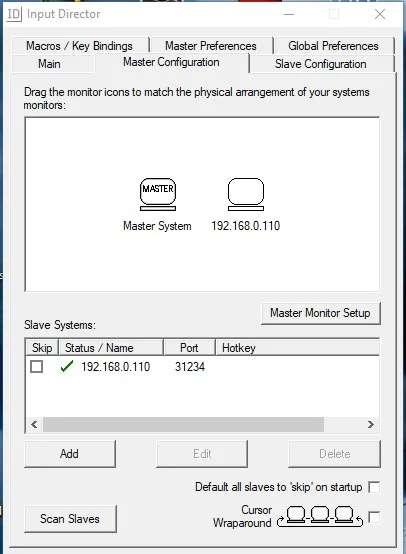
If you’ve ever needed to manage two computers at the same time without using two keyboards and mice, this program is a true blessing. It avoids the tedium of handling multiple peripherals.
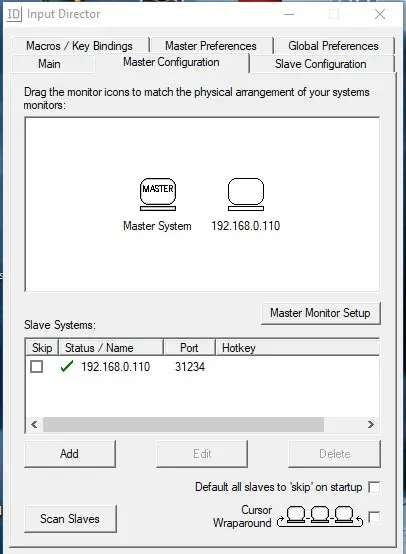
Input Director offers a complete yet simple configuration. You begin by setting up the “Master” computer, which will be responsible for transmitting mouse and keyboard movements to other computers.
Configuring Input Director
The configuration is quite intuitive. To control another computer, simply add it using the “ADD” button. This will display the following menu:
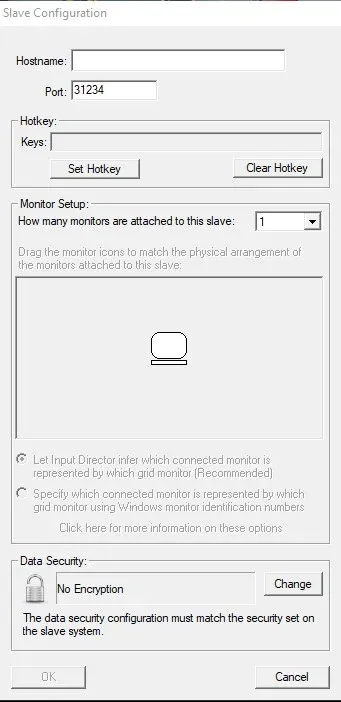
Input Director - Configuration of new Slave on Master.
In this menu you can configure:
- HostName: Can be the IP address of the computer or a domain if you have one.
- Port: The port through which the computers will communicate.
- HotKey: Define a key combination to directly switch to that computer, avoiding having to go through others.
- Monitor Setup: Indicates the number of monitors the remote computer has.
- Data Security: One of the most interesting options, as we’ll see below.
Dangers of Using Input Director Without Encryption
It is important to highlight that, by default, Input Director does not encrypt the information transmitted between computers. This means that, with a sniffer (like Wireshark), anyone could see the keyboard and mouse data. Although it’s not easy to decipher, it’s recommended to activate encryption for greater security.
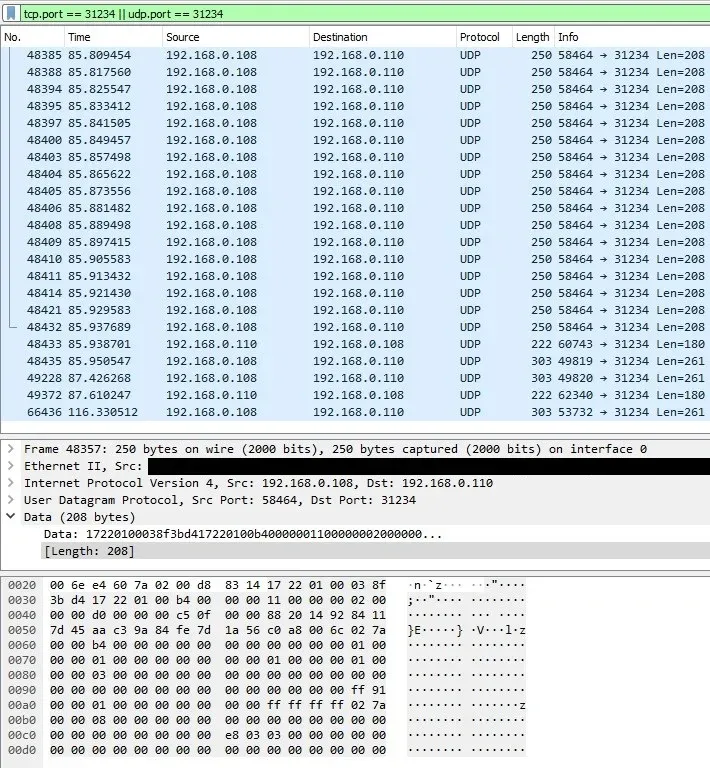
InputDirector - Without Encryption
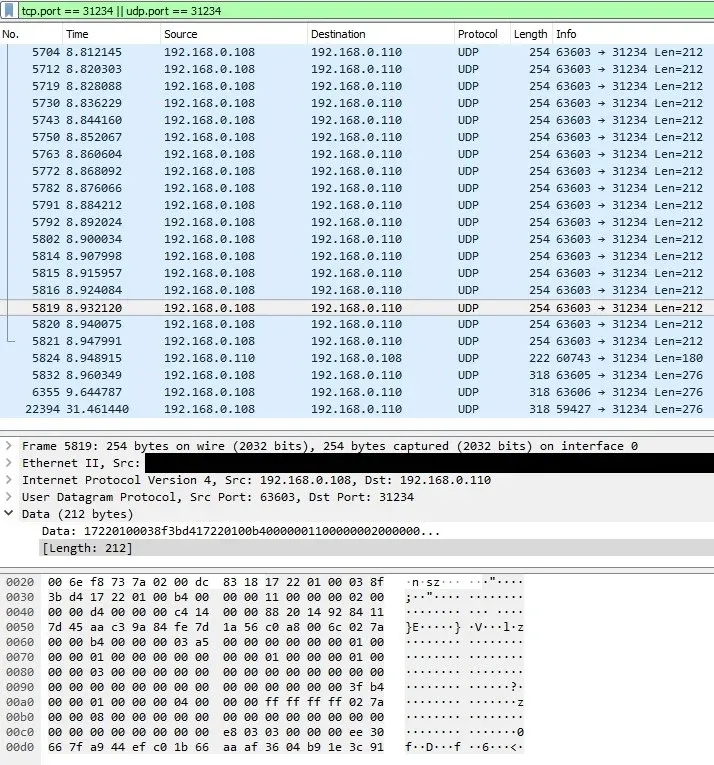
InputDirector - With Encryption
When you enable encryption, there is not a significant visual difference at first with Wireshark, but the packets end up containing meaningless characters, indicating that the information is encrypted. It uses an AES 128, 192 or 256-bit encryption, which is interesting considering that keyboard and mouse data are being sent over the local network.
Configuring the Remote Computer (Slave)
In the configuration of the “Slave” (slave) computer, there are also several options available:
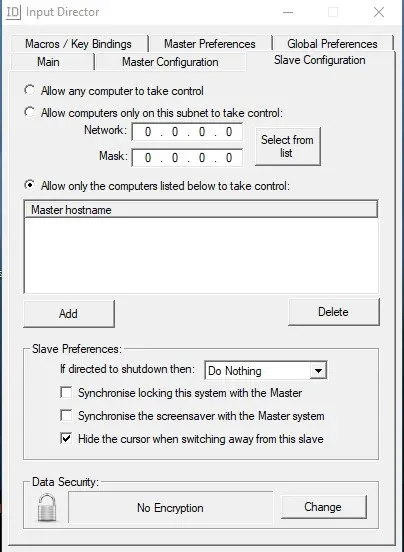
Input Director - Slave Configuration.
You can allow or restrict access to certain segments, networks, or even specific computers with defined IPs to act as Master. You can also configure what to do in case the Master sends the shutdown signal. A very useful option is to synchronize the screen lock and screensaver of the Slave with the Master. That is, if it locks or activates the screensaver on the Master, it will also be done on the Slave, which is convenient if you use this computer as an extension of another for any reason.
Advanced Options of Input Director
There are more advanced options in the other tabs, but I will only mention those that I usually use:
- Autostart: You can configure Input Director to start automatically with the operating system on both Master and Slave.
- Preferred Network Interface: Defines the network card that the program will use to listen and emit data.
- Share Clipboard: Allows sharing the clipboard between computers. Be careful not to transfer excessively large files, as it can be annoying if you are not paying attention to the size limit.
In general, Input Director is a complete and useful program for managing multiple computers simultaneously for any reason.
Important Note:
Both systems must be running the same version of Input Director to communicate correctly. Otherwise, an error will be displayed.
Links to project pages: