Nmap | Port Scanning and Much More in One Place
Published on May 23, 2019 · Niwo
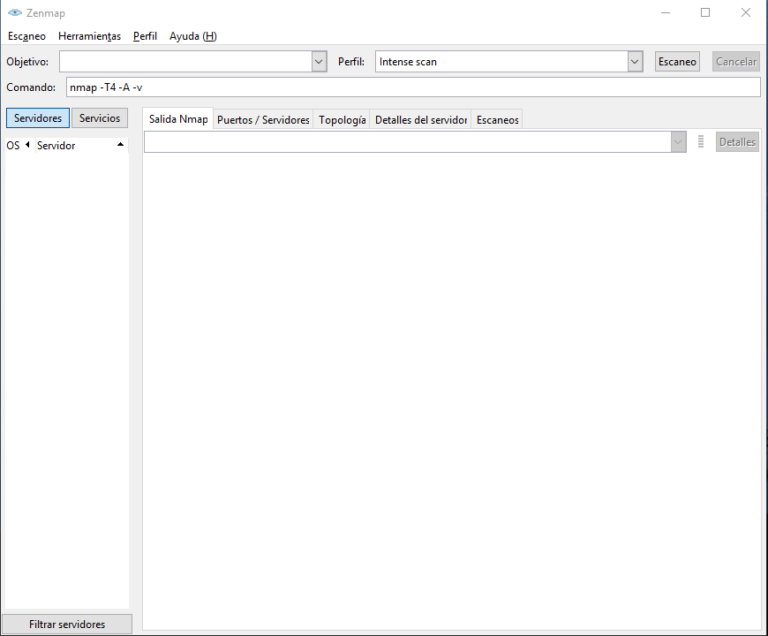
Nmap is a highly versatile utility, available in multiple languages, that allows us to obtain valuable information from a device connected to the network. It can discover practically everything the device exposes, but in this article, we will focus on simple and useful functions.
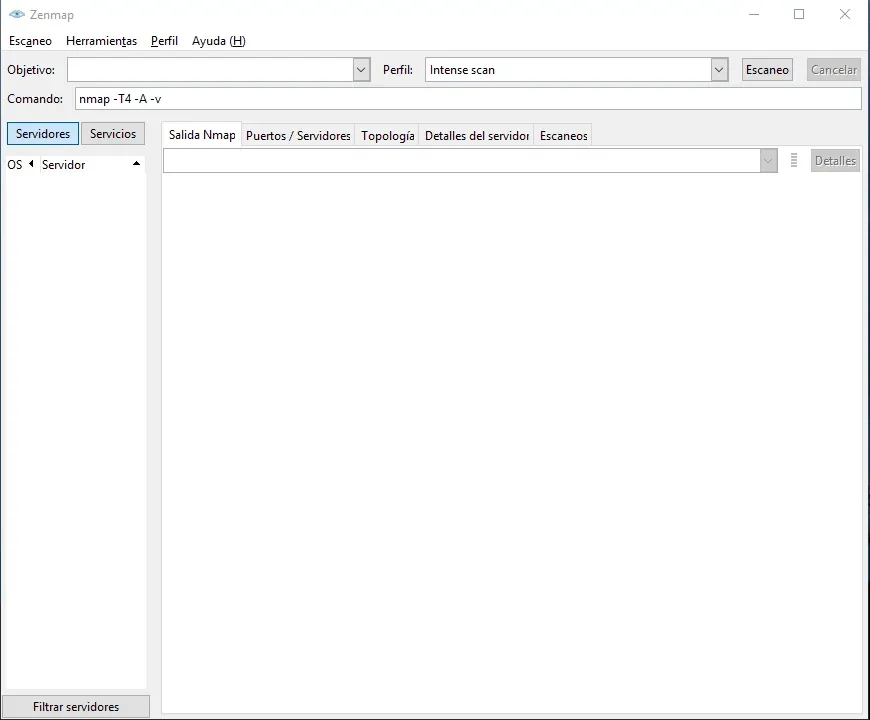
Zenmap - Home
What Can I Do with Nmap?
Nmap offers numerous functionalities, but one of the most used to obtain information about devices without direct access is TCP port scanning. This allows us to easily identify if a device has any open ports. With Nmap, we can also estimate the operating system it uses and perform a traceroute, which facilitates understanding the environment we are working with.
Most Used Functions
Generally, when working with Zenmap, pre-defined profiles are used. The most useful might be “Intensive Scan, All TCP Ports” and “Intensive Scan, No Ping”. The first performs a scan of all 65535 TCP ports looking for any open ones. The second performs a scan without sending the initial ICMP request, which is useful if the device does not respond to this type of packet and stops the sweep at the beginning.
Nmap: Useful Parameters
-Pn: Treats all hosts as online, useful if they do not respond to ICMP packets (ping command).-p: Allows you to select which ports to scan, both specifically and in ranges.-A: Enables useful functions such as operating system detection, version detection, scripts, and performs a trace of the device’s location.-6: Enables IPv6.
It is important to highlight that there are many more parameters for Nmap, but describing them all would result in an extensive and impractical list. If you are interested in knowing more options, you can consult the complete guide on the official website:
What is Zenmap?
You may have heard of Zenmap or seen that Nmap refers to it. Don’t be confused; Nmap typically runs directly from the command line (CLI). However, for those unfamiliar with the console, there is Zenmap, a graphical user interface (GUI) that manages Nmap functions more easily. I personally find it very useful because of the additional information it displays, such as network topology, a port summary, and the additional details that also appear in the CLI version but are easier to read in Zenmap.
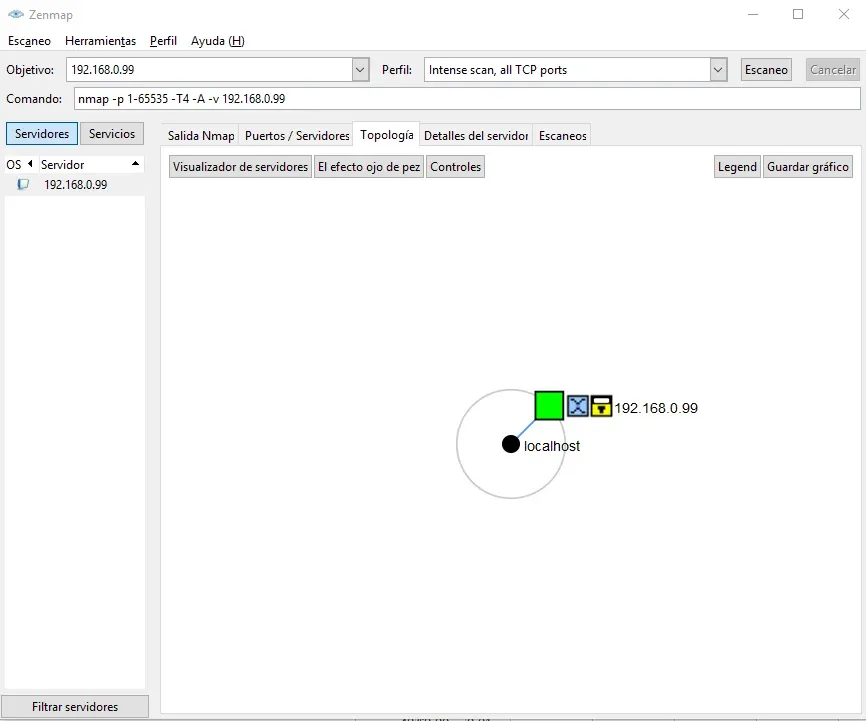
Zenmap: Topology of a device
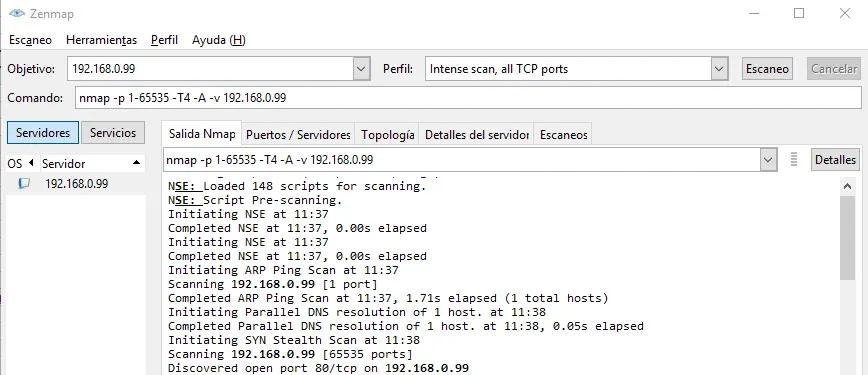
Zenmap: Example of sweeping all ports of an IP
Legality of Using Nmap
It is crucial to be very careful when using Nmap, as it is not a tool that can be freely used for malicious purposes on any Internet server. We must consider that it is an invasive tool, as it sends a large number of packets to a device, which could cause problems. Therefore, it should be used at your own risk and, above all, with the prior permission of the device owner. It must not be used for malicious purposes, but exclusively for troubleshooting and security testing.
Which Operating Systems are Compatible with Nmap?
Nmap and Zenmap are available for practically all operating systems, not just Windows or Linux. They are even developed for MacOS, and compatibility extends beyond that. Although Nmap does not have official support for Android, some Android applications use its CLI functionality to scan networks.
Where to Download Nmap?
Depending on the operating system you use, you can find it in different places, but generally on the official website:
Both Nmap and Zenmap use Nmap for their functions, although Zenmap offers fewer customization options.
Need to generate custom network scanning commands? Try our Nmap Command Generator.