Putty | Save Session Log to a TXT File
Published on June 8, 2019 · Niwo
Saving a session log in Putty is essential, especially because terminals often have a limit to the number of visible lines (scrollback). When performing complex configurations or providing technical support, the ability to export everything done to a TXT or LOG file proves invaluable for later review and analysis.
By default, Putty offers 2000 lines of ScrollBack. You can modify this number in the terminal settings before starting a session.
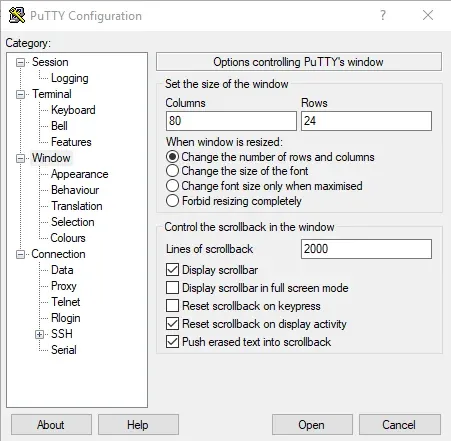
Windows category in Putty Settings
However, if you’re not sure how many lines you’ll need or prefer to have a complete record, it’s best to export everything to a TXT or LOG file for future reference and troubleshooting.
How to Save a Putty Session Log to a TXT File?
The process is simpler than it seems. The “Logging” section of the program allows you to direct all output to a TXT or LOG file, according to your preference.
The first thing is to specify what type of log you want to save. Putty can log from SSH packets with raw data to simply SSH packets. To get the terminal output, you have two options: “Printable Output” and “All Session Output”. The second option, “All Session Output”, is the most complete and the one we recommend using.
The next important setting is the file location. You can use the “Browse…” button to select a folder and assign a name to the file, including auto-completion parameters:
&Y: Year&M: Month&D: Day&T: Time&H: Host Name&P: Port Used
For example, a file saved on the desktop with the name &H-&P.txt would be generated as: host_name-port.txt.
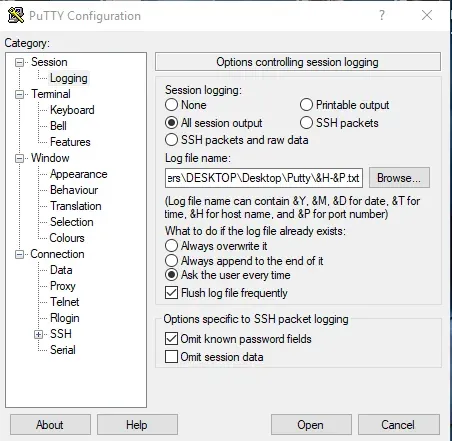
Logging Category - Putty
A crucial aspect is omitting password fields. Make sure this option is enabled to avoid saving passwords in the log file, thus protecting your sensitive information. Putty will exclude these fields if it recognizes them as such.
Are you interested in learning more about Putty?
Click here to see our article on Putty
Need to configure SSH access to multiple servers? Try our SSH Config Generator.